
Candidate web edition dated 19 October 2026. Commands describe candidate 1.1.0 (10); compare them with the installed version. The existing PDF is an earlier guide and does not document the new CE features.
Quick start
What you are using
Rilievo organises surveys, machines, photographs, documents, findings and draft risk assessments. It assists a professional in examining machinery condition and establishing the applicable legal framework. AI output may contain errors, omissions or hallucinations. A competent, experienced professional must check and approve it before use or delivery. A review recorded in the app is not a signature, CE certification or permission to operate a machine.
1. Protect existing work before updating
- Open an important survey and check that its photographs and attachments are readable.
- Open the Survey panel, choose Export package, and save the ZIP to authorised business storage. Read the draft notice and confirm Export the draft when prompted. Open the saved copy and check its contents.
- Also back up the device. On a Mac, connect the iPhone, select it in Finder and create a backup. Consider encryption and securely retain its password. Check the completion timestamp. Apple instructions.
- Install the update to the same app through the authorised App Store or TestFlight channel when available. Retain the app and its archive throughout the process.
- Reopen existing work and check machines, photographs, documents and assessments. If anything is missing, stop editing and retain the backup for support.
The ZIP is an exported survey archive. Do not assume that it automatically restores the entire device. See the extended guide for what to retain.
2. Set the language and access
- Settings → App language: select Italiano, English or the system choice. Automatic selection uses Italian for an Italian device and English otherwise.
- Settings → Subscription: read the plan, price, renewal and conditions in Apple's purchase sheet before confirming. A 14-day trial is shown only when Apple returns that free introductory offer and the account is eligible. Reinstallation does not guarantee another trial. Apple introductory offers.
- The app subscription and external AI services have separate accounts, availability and costs.
3. Start with one AI channel
| Need | App route | First check |
|---|---|---|
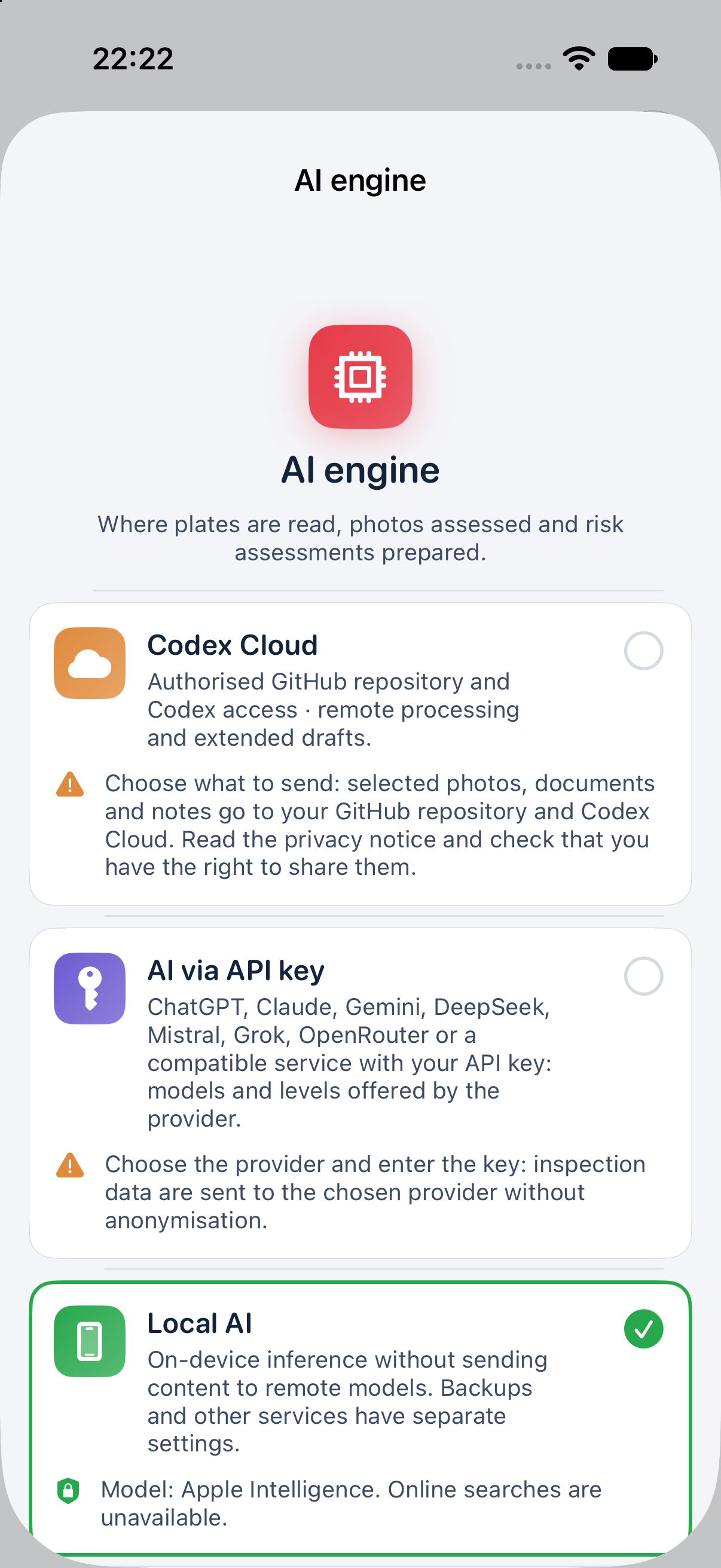
| Processing on the phone | Settings → AI engine → Local AI | Download/select a compatible model. Photographs require a vision model; Apple Intelligence is text-only. |
| A service using your own key | AI engine → AI via API key → Provider, key, model and level | Enter the key in its protected field, Save and verify, then Test the connection. Check transfer authorisation and provider charges. |
| Codex through a private repository | AI engine → Codex Cloud → GitHub and Codex connection | Complete the steps below and test with demonstration data. |
Never put passwords, API keys or GitHub tokens in chats, support emails, notes, photographs or PR comments. Use the app's protected credential fields. Data sent to external services are not automatically anonymised. Even with local inference, assess Photos/iCloud copies and any other enabled services separately.
4. Configure Codex Cloud without skipping steps
- Establish your authority to transmit client data and confirm compatible Codex Cloud account access.
- Prepare a private repository dedicated to Rilievo, with an initial file. Record its owner and name.
- Use Create a token on GitHub to create a repository-limited fine-grained token: Contents read/write, Pull requests read/write, Metadata read. Complete any required organisation approval.
- Enter owner, repository and token in the app's protected field. Select Save and verify, then Publish instructions for Codex (AGENTS.md).
- Connect Codex to that repository. Automatic
@codexcomments require a working, authorised GitHub integration. OpenAI distinguishes current Cloud from the Legacy integration route. Official Cloud environments. - Select the configured Job trigger route. Labelled PR only (started externally) and Manually from Codex Cloud in a browser prepare a request; they do not start processing by themselves.
- Create a DEMO survey, add a photograph and request an assessment. Open the job under Codex, then Pull request on GitHub. Check the request, images and job identity.
- Select Sync now and verify the imported result in Rilievo. An open PR or a prose answer does not establish successful import.
If automatic triggering is unavailable, follow the extended guide's manual route: Codex processes the job, and its complete JSON is saved as response.json in the job folder on the PR branch. The app checks that file. The reviewed code does not expose a general in-app “paste JSON” command.
5. Complete your first survey
- Select New survey. Check client, site and inspector; verify any proposed client recognition.
- Register the machine and any child machines. Check its code, for example
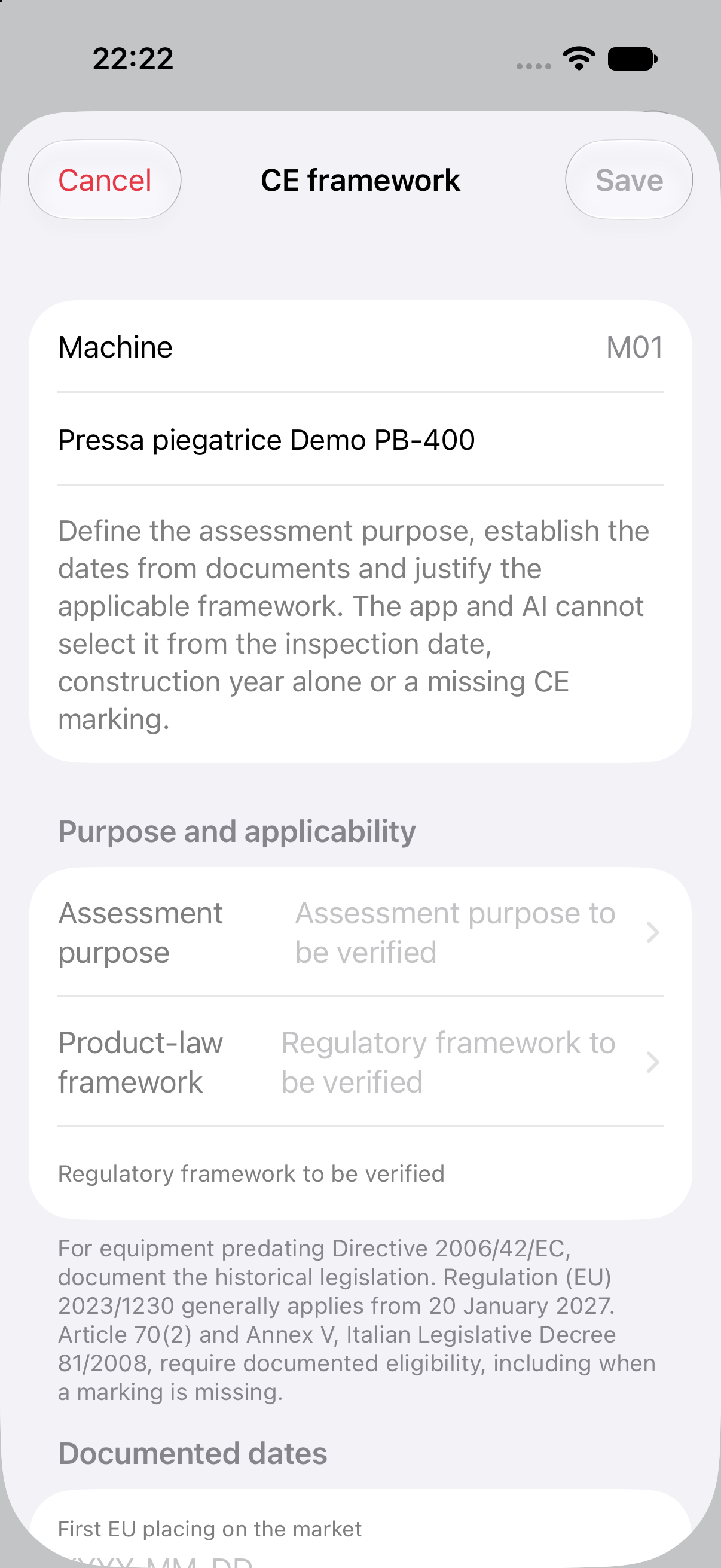
M01. - In machine details, choose Review purpose, dates and legislation. Enter purpose, framework, documented dates, evidence source, justification and modifications. Save a draft when information is missing. Personal confirmation becomes available only when the formal checks are complete.
- Photograph the overall machine, identification plate and relevant details. Check the selected machine and frame boundaries before capture. Review a captured photograph after changing zoom as well.
- Add arrows and notes: red for serious findings, yellow for findings requiring assessment, green for a specific observed point. Areas without arrows remain unverified.
- Add available instructions, declarations, diagrams and test records. Open a document → menu → Document details: record type, provenance, readable date, issuer, link to the specific unit, pages and verified technical contents.
- Open Assessments and use Evaluate now or the machine assessment command. Check the draft, evidence and open issues; assess more than the summary colour.
For the Regulation, the app distinguishes general application from 20 January 2027 and Annexes III, IV and V. The professional must establish actual applicability and transitions. Official consolidated text dated 27 July 2026.
6. Review, generate and retain
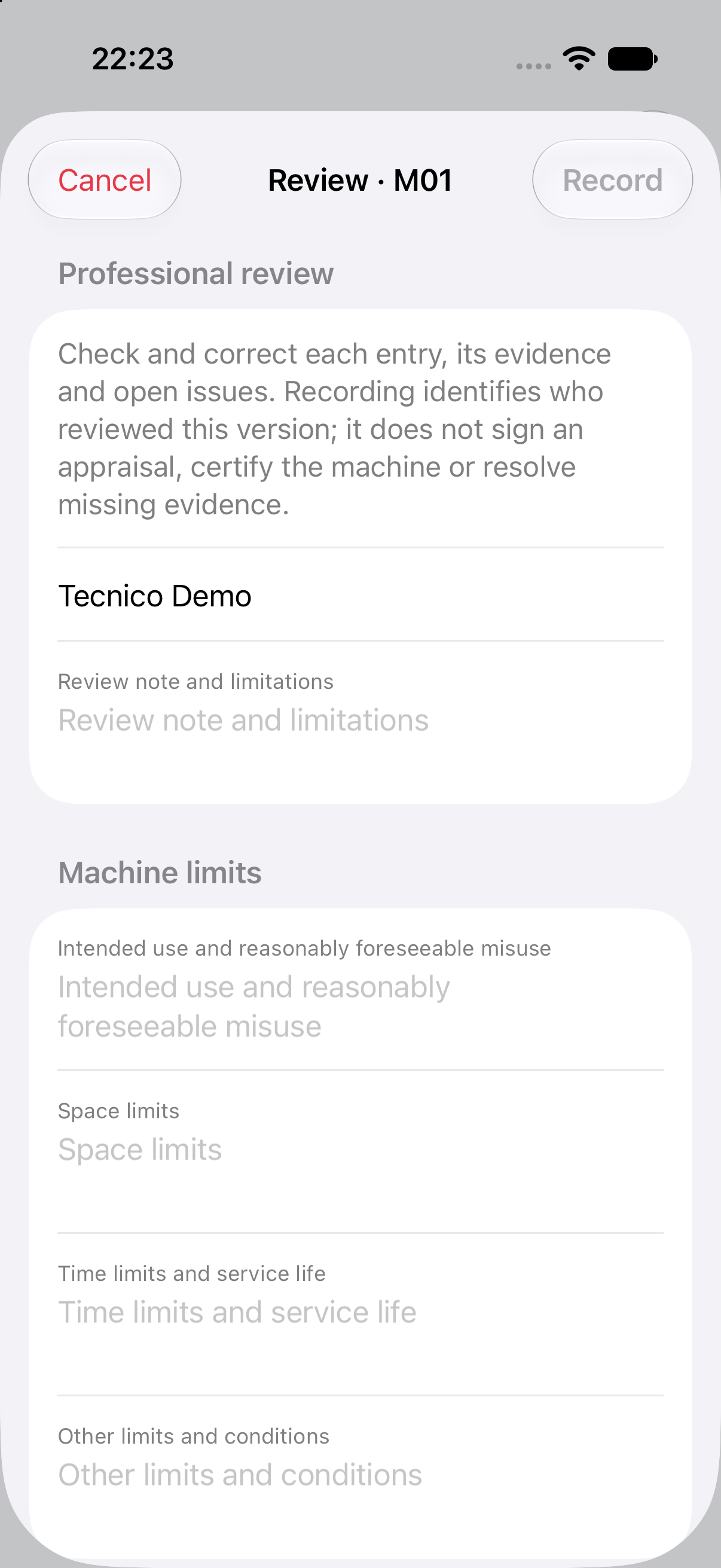
- Open Professional review from the assessment. Check every risk, P/G estimate, C/NC/NV/NA finding, measure, reference and item of evidence. Record your identity, limitations and personal declaration only after checking.
- A new AI proposal remains separate from the recorded review. Changed evidence may make the previous review outdated: it is retained but requires another examination.
- Read Checks before the report. Drafts retain gaps and warnings; recording review requires the specified checks. Documented non-conformities remain visible.
- Generate the PDF and, if selected, the editable document. Check every generated file and its pages before delivery. No command automatically creates a signed appraisal.
- Retain the package, checked reports and professional records required for the assignment.
When something goes wrong
| Problem | Useful action |
|---|---|
| Missing photographs or documents after updating | Stop editing; retain the app, device backup and ZIP; report the version and survey codes to support. |
| Codex does not start | Check repository access, authorisation, trigger mode and environment; use the documented manual route. |
| Key or access rejected | Check expiry, permissions, account, SSO and network. Share only the error, never the credential. |
| Local model unavailable | Select a compatible ready model; processing may remain queued. External processing requires explicit selection and authorisation. |
| CE confirmation or reviewed report unavailable | Complete the listed evidence and verification gaps; retain a draft while the assessment is incomplete. |
Candidate screens
Reference screens captured with the previous candidate 1.1.0 (9), using an iPhone simulator with DEMO data only. Disabled fields show this session’s read-only access; no professional review or Apple entitlement is simulated.
Extended guide
1. Purpose and limitations
Rilievo supports surveys and preliminary machinery safety assessments. It registers machines and child machines, retains photographs and attachments, organises findings and AI proposals, assists risk assessment and generates working documents. The professional defines the assignment and machinery boundaries, determines legal applicability, performs checks and remains responsible for their decisions under applicable law.
AI output can contain errors, omissions, contradictions and convincing fabricated information. Every analysis and report is a draft that a competent, experienced professional must check, correct and approve before use or delivery. “Processing completed”, a green indicator, a low score or a recorded review does not establish machinery safety, marking, a signature or permission to operate.
CE4U S.r.l. provides the software and Carlo Tenca develops it. The app does not automatically make them the expert, approver or signatory of an output. Applicable contractual and statutory duties and mandatory rights remain unaffected. Read Professional use, AI limitations and liability in the app and the full applicable terms. This guide does not create an absolute liability exclusion or replace those terms.
2. First installation and updates with existing data
First installation. Use the supplier's Apple product page or TestFlight invitation when the version is available. Check Rilievo's identity, developer, system requirements, version and notes. Availability depends on channel and territory. Mainland China must remain excluded for this release; the actual App Store Connect configuration requires separate distribution evidence and is not established by this guide.
Updating. Retain the installed app and its data. Complete the following before using the new version:
| Stage | Action | Evidence to retain |
|---|---|---|
| Inventory | Record survey counts, representative codes, machines, photographs and attachments. | Local inventory without publishing client data. |
| Export | For important work: Survey panel → Export package → save the ZIP outside the app. | ZIP opened and representative contents readable. |
| Device backup | Use an authorised business backup method; use Finder on a Mac. | Completion timestamp and availability of the encryption password, if used. |
| Update | Update the same app through the authorised channel. | Actual installed version. |
| Check | Reopen older work, original photographs, documents and assessments. | Comparison with the earlier inventory. |
An Apple Finder backup is separate from a survey ZIP. Encrypted backups require a password that must be retained securely. Successful export alone does not establish tested full recovery. The reviewed code provides ZIP export; this guide does not assume a universal in-app ZIP reimport command.
If the post-update comparison shows missing information, retain the app, stop editing, preserve copies and contact support. Avoid deletion or reinstallation attempts while the cause is uncertain. Device recovery needs a dedicated procedure and a verified copy.
3. Language, permissions and device preparation
In Settings → App language, choose Italian or English. Automatic choice uses Italian for an Italian device and English otherwise. Changing language should preserve entered data, units, evidence codes and historical results. Check report language separately.
Grant permissions needed for the functions you use: camera for capture, Photos for import/copy, location for client recognition and geolocation, microphone/speech recognition for dictation. Personally check client, site and dictated notes. If a permission is denied, adjust that specific function in iOS settings and verify the outcome.
Under camera/arrow settings, check resolution, annotation and copying to Photos. Photos copies may sync through iCloud Photos under Apple's settings; assess that destination before collecting confidential client information. Keep sufficient storage and power, especially for larger local models.
4. Subscription, trial and purchase restoration
Open Settings → Subscription and wait for product metadata. Read the Apple-returned price, period, renewal conditions and final purchase sheet. The product actually offered to the account determines the transaction conditions.
14 days free is shown only when Apple returns a free two-week introductory offer and the account is eligible. Installation date or a local counter does not create entitlement. Apple documents offer setup and eligibility. Actual availability and conditions appear in Apple’s purchase sheet.
If a previous purchase is not recognised, check the Apple account and use Restore purchases in subscription settings when available. Retain the app's message. Sandbox/TestFlight and local StoreKit products need separate verification; they do not establish a production commercial transaction. ChatGPT/Codex access or a provider API key does not replace app access.
5. Your working file
Select New survey and verify client, site and inspector. Use survey and machine codes to associate every photograph, document, note and risk with its subject. A component or child-machine plate must not automatically be attributed to the whole machine.
The main tabs are Survey, Machines, Assessments, Alerts and Codex. The Survey panel contains synchronisation, export and draft report requests. Machine menus provide capture, research and assessment actions according to access and configured channel.
The intended workflow is: evidence → AI proposal → draft with explicit gaps → professional examination/corrections → recorded review → report checks and working document. New evidence can make a recorded review outdated. A later AI proposal is retained separately when a professional review already exists. This workflow describes the implementation, not completed device acceptance testing.
6. Completing the CE framework carefully
Open Machines → machine → Review purpose, dates and legislation. The screen edits a working copy; only Save changes the data. Cancel retains the earlier value. A concurrent change stops saving and asks you to reopen the screen against current data.
| Field | What to enter | Mistake to avoid |
|---|---|---|
| Purpose | New machinery, existing equipment, assembly, partly completed or modified machinery, according to the assignment. | Confusing a photographed component with the full assembly. |
| Product-law framework | The professional's justified choice, including historical legislation where relevant. | Choosing it from the inspection date or plate year alone. |
| First EU placing on the market | Complete date of the documented event. | Confusing manufacture, later resale, import or inspection. |
| First putting into service | Complete date and context of the documented event. | Treating an estimated/future date as a completed event. |
| Modifications | Assessment of physical/digital changes, use and integration. | Automatically declaring a substantial modification. |
| Source | Identified document, provenance, date/page and link to this unit. | Entering only “manual” or a filename. |
| Justification | Why the framework applies, its limitations and verified transitions. | Treating a checkbox as a substitute for assessment. |
These two event dates require complete YYYY-MM-DD values. 2026-02-29, 2027 or an impossible calendar date is not valid complete evidence. Leave an unknown event empty and retain a draft. Partial dates allowed in document metadata do not change this event-date requirement.
Personal confirmation becomes available when formal checks are complete. It remains the professional's assertion supported by evidence: software cannot determine whether free-text justification is true or sufficient. Editing the facts resets confirmation. Unreadable existing context prevents saving to preserve it.
7. Product legislation, use and modifications
The candidate uses conservative checks:
- Product-law applicability depends on relevant events and provisions. A 2028 inspection does not automatically move machinery placed in 1998 into the new Regulation. Historical references must be identified from evidence. Directive 2006/42/EC applies from 29 December 2009. Directive, Article 26.
- Regulation (EU) 2023/1230 generally applies from 20 January 2027, with specific commencement and transitional provisions to assess. The app distinguishes EHSRs in Annex III, technical documentation in IV and EU declarations in V. Readiness remains preparation. Consolidation dated 27 July 2026.
- Equipment used in Italy also needs assessment of suitability, maintenance, inspections and use duties under Articles 70–71, Legislative Decree 81/2008. Eligibility for Article 70(2)/Annex V requires evidence; “CE marking not visible” is insufficient. Normattiva, INAIL guidance.
- Modifications, assembly integration and changes of use require defined boundaries and reasoned assessment. For the Regulation, the professional examines Article 3's definition and Article 18's duties. AI does not automatically designate a new manufacturer. Include software, controls, updates and access where safety-relevant.
| Example | Expected candidate behaviour |
|---|---|
| First placement in 1998; inspection in 2028 | Retain documented historical dates and framework; no automatic change of product legislation. |
| 2020 machine; CE marking not visible | Require evidence/documents; no automatic Annex V assignment. |
| Only “2027” readable on the plate | Preserve the reading; first placement/use still require evidence. |
| Future event | Treat it as planning, not a completed event. |
| Physical/digital modification under examination | Keep the issue open and the assessment in draft until justified review. |
8. Photographs, identification plates and annotations
Before capture, check survey, selected machine, capture mode, zoom and subject boundaries. Acquire context and relevant details; open a sample photograph to check its association and readability. Actual viewfinder/photo alignment on the device requires dedicated testing; the presence of this guide does not establish its result.
Plate reading proposes visible information. Check manufacturer, model, serial number, year, units and marking yourself. Identify component plates. Reliable OCR does not establish whole-machine identity or first EU placement date.
Numbered arrows identify points for assessment. Record observed facts separately from hypotheses. A green arrow supports at most a specific observation; absent arrows/alerts do not prove absent hazards. Follow relevant site safety procedures for serious danger without waiting for AI processing.
9. Documents: acquisition, provenance and dates
Import or scan from the machine menu. Open the document, then menu → Document details. Record:
- Type, number, issuer and origin.
- Date at its readable precision, wording and document location.
- Unit linkage, such as model/serial/page evidence.
- Personally verified technical content and page references.
- Declaration page and on-site verification where appropriate.
Document metadata accept valid YYYY, YYYY-MM or YYYY-MM-DD precision. Do not invent a missing month/day. PDF, EXIF and import timestamps are technical clues, not automatic proof of the substantive document date. A series document is not automatically evidence for the specific unit.
Metadata saving does not change the original attachment bytes. For local AI, technical-content notes make verified facts available to the model; having a PDF does not mean every page has automatically been read. Check the evidence actually cited in each result.
10. The three AI channels and confidentiality
| Channel | Preparation | Material and limits to check |
|---|---|---|
| Local AI | Compatible downloaded ready model; Apple Intelligence only when iOS makes it available. | On-device inference; Apple Intelligence is text-only. Models without vision do not inspect images as images. No local-channel web document search. |
| AI via API key | Provider, key, model, authorisation and connection test. | Job material is sent to the configured provider; costs and limits depend on that account. Descriptions/notes/OCR do not replace images for a non-vision model. |
| Codex Cloud | Private repository, GitHub token, Codex connection, environment and authorisation. | Survey photographs, documents, notes and data may reach the repository and Codex. Review the prepared file, not only the visible question. |
Before remote processing, read the notice and establish authority and appropriate arrangements for client data and destinations. There is no automatic anonymisation. The app stores GitHub tokens and provider keys in Keychain; enter them only in their intended fields, never in messages or screenshots.
Revoking Cloud authorisation stops new sends and returns the selected engine to local processing. Manage already-transferred files in the receiving services according to roles, retention and contracts. Local inference does not automatically disable Photos/iCloud copies, manual shares, backups or optional timestamp services.
11. Setting up local AI
- Open Settings → AI engine → Local AI.
- Open local model settings. Read compatibility, storage and licences; choose from the current catalogue.
- Choose a vision model for photographs. Wait for download/readiness and check the active model name.
- Test a demonstration photograph/document and personally verify proposed readings and findings.
- Select a suitable level; longer output is not proof of correctness.
The code seeks a ready compatible local model and can use Apple Intelligence as a local text alternative where available. Jobs can remain queued if no model is ready. If Apple Intelligence is unavailable or refuses a request, choose another compatible local model or deliberately configure another authorised channel. Missing model availability must not become an invented result.
12. Setting up AI via API key
- Select AI engine → AI via API key and read the transfer notice.
- Open provider/key/model settings and select the correct provider. For a custom service, have its address and compatibility checked.
- Create the key in the provider portal with appropriate permissions/limits; enter it in the app's protected field.
- Select Save and verify. Loading accessible models verifies one connection step, not correct analysis of complex photographs.
- Choose a vision model for photographs and a supported reasoning level. Check any automatically proposed choice.
- Select Test the connection. This is a service request and may consume usage. Check the response, model and AI usage register.
- Run a real DEMO job, then check import and content.
For authentication, quota or model errors, check the provider account. Do not send the key to support. Where a faster service tier or cost estimate is offered, verify it against provider information and billing. This guide does not guarantee future prices, models or account access.
13. Codex Cloud: one-time setup
A. App and GitHub. Prepare a private repository dedicated to Rilievo. Enter its owner/name under GitHub and Codex connection. Use a repository-limited fine-grained token with the screen's required permissions: Contents and Pull requests read/write, Metadata read. Complete expiry and organisation approvals. The app also offers repository creation; restrictive tokens may require prior creation on GitHub. Official GitHub token guidance.
Select Save and verify, confirm repository reachability, then Publish instructions for Codex (AGENTS.md). These results establish access/file publication, not job execution.
B. Codex. Connect the same repository. Current Cloud uses published environments; official setup includes repository selection, preparation, checking and publication. Automatic GitHub integrations continue through the Legacy route. Use the route authorised and available to the account; verify repository/network access instead of assuming a new environment enables GitHub mentions. Current Cloud, Legacy Cloud.
C. Complete test. Choose Job trigger, create a demonstration survey and request a job. Open its PR from Codex, check branch/folder/files, wait for processing and select Sync now. Compare known facts with the imported result. This complete sequence tests that case/account; token verification alone does not.
14. Codex Cloud: automatic triggering and manual recovery
| App mode | Code behaviour | Required check |
|---|---|---|
@codex comment on the PR | Prepares files and posts the request. | Authorised integration, suitable environment, complete imported JSON. |
| Labelled PR only (started externally) | Prepares the PR and job. | Actual external processing start. |
| Manually from Codex Cloud in a browser | Prepares the PR and job. | Manual execution and result saved at the job path. |
Manual route supported by the code:
- Under Codex, open the job, then menu → Pull request on GitHub. Copy the exact branch and job folder from the PR body. It contains
request.jsonandprompt.md. - Open Codex Cloud from the menu or official service. Start a task in an authorised environment that can read the repository and request examination of that job branch. Do not include the iPhone token in the prompt.
- Request compliance with
AGENTS.md, the prompt and schemas, processing only that request and returning the complete JobResponse with identicalid,kindand schema while retaining original documents. Prose or truncated JSON is insufficient. - If the result is only in Cloud chat, copy only the complete JSON, without Markdown fences or surrounding text. On GitHub, select the existing job branch, open its folder and use Add file → Create new file to create
response.json. Paste and commit to that job branch. If a file already exists, compare it and obtain a technical check before replacing it. GitHub file creation. - Check the exact folder path, identifier and case. Preserve request and prompt. A repository-root file or an app note does not put the response at its expected job path.
- Return to Rilievo and select Sync now. Verify the job result and imported data. Identity and completed status must be correct; failed, running or other-job responses are not completion.
- Retain errors and job identity if import fails. Correct the cause without falsifying
id/kindto fit a different response. Repeat with a demonstration job after fixing the connection.
The branch's response.json is the reviewed code's recovery route. A human-authored ordinary GitHub comment is not equivalent to a recognised Codex bot comment, and the examined UI has no general clipboard JSON import command.
15. Automation and supervision
Read photo, risk, research and alert options under Settings → Automation. Start manually with DEMO data. Enable only needed automation after verifying a complete result. Jobs can restart after evidence/notes change and the configured idle period expires.
The Codex tab shows jobs and channel. Check state, errors, declared model and imported result. Queued status can require access, a ready model or an external start, depending on channel. Service, network and device affect timing; no guaranteed completion interval is implied. Remote research may return series documents; verify unit matching.
An alert marked superseded may simply be handled or duplicated elsewhere. It does not itself establish an effective correction. Keep the non-conformity in the assessment until correction and verification are documented.
16. Risk assessment and protected review
Examine use limits, lifecycle phases, zones and exposed people. Include relevant hazards without arrows. The P×G matrix is the app's working method: justify probability/severity, do not assign low values for missing data, and distinguish existing measures from proposed measures.
| Finding | Operational meaning |
|---|---|
| C | Justified conformity finding for the specific point, with relevant evidence. |
| NC | Documented non-conformity; retain hazard, evidence and actions. |
| NV | Unverified point requiring further evidence. |
| NA | Justified non-applicability for this case. |
Open the assessment's Check and record a review action. Examine entries, P/G, evidence, measures and conclusions; record reviewer, note and limitations and confirm only after personal examination. The code retains the previous review in history and checks for concurrent machine changes.
With a recorded professional review, a later AI job stores a separate new proposal. You can explicitly load it into the review's working copy for comparison, then examine it before saving. Availability alone does not update the recorded review.
Changed photographs, documents or framework can make a review previous/outdated. Retaining earlier work does not approve it against new evidence. Examine historical presumed results as historical content; missing evidence must not be converted into conformity.
17. Preparing reports
Open report generation from the panel or machine menu. Check type, machine/boundaries, language, revision, professional details and output options. Read every gap under Checks before the report.
- Draft permits a working document with missing data; warnings and open points must remain readable.
- Record professional review requires the specified checks and personal declaration about the report. Risk-assessment review, regulatory context and report declaration are distinct steps.
Undefined context, superseded review or incomplete evidence can block reviewed mode. Do not remove an NC to obtain a more favourable result. Documented non-conformities remain visible in reviewed documents. Generation does not replace signatures, required declarations, conformity procedures or operating decisions.
Check the entire PDF and any generated editable document: title/status, identification, pagination, photographs/captions, evidence, references, estimates, tables, measures, conclusions, warnings and truncation. External editing requires professional verification of the final copy as well. This guide does not attest completed visual checks of every layout combination.
18. Export, integrity and retention
Export package produces a survey ZIP with manifests, available evidence, AI responses and notices. Read its README, actual file list and export warnings. Integrity checks and configured available timestamp proofs have package-specific verification instructions.
A hash establishes byte correspondence with a reference value, not technical correctness, photographed identity or machinery safety. Do not automatically represent the service's timestamp evidence as a qualified signature/stamp. Retain originals, documents, verification records and reports according to the assignment and applicable retention policy.
19. Structured troubleshooting
| Symptom | Checks | Useful support evidence |
|---|---|---|
| Purchases missing | Account, network, product loading, restore; operator must check live Apple configuration. | Version/channel/message/time, without credentials. |
| Cloud/API 401 or 403 | Token expiry/permissions, repository, approval/SSO, account and network. | Provider/error code with secrets redacted. |
| PR exists without result | Trigger, environment, complete file or bot response, identity and path. | PR number/UUID when disclosure is authorised. |
| JSON not imported | Complete file, schema, id, kind, state and path; preserve original request. | Error and job; no artificial identity changes. |
| Local AI queued/failed | Compatibility, download, memory, active model, foreground state and text-only limitations. | Model/message/repeatable DEMO. |
| Context cannot be confirmed | Complete dates, evidence, justification, purpose, modifications and any future/conflicting framework. | Open-point list with minimal confidential data. |
| Review/report outdated | Evidence version, recorded review and separate new proposal. | Relevant codes and change history. |
During review, complete Machine limits: intended use and reasonably foreseeable misuse, space, time/service life and other conditions. In Safety functions, add, correct or remove the name, PLr and note. The app does not automatically calculate or validate PLr: an unverified function remains unverified and must be recorded among open issues.
20. Acceptance tests and candidate screens
Before using this release on real assignments, distribution must document non-destructive updating, IT/EN UI, device capture/zoom, three AI channels, protected review, reports and Apple purchases. This list does not claim those tests have already passed.
Candidate screens
Reference screens captured with the previous candidate 1.1.0 (9), using an iPhone simulator with DEMO data only. Disabled fields show this session’s read-only access; no professional review or Apple entitlement is simulated.
Third-party PDF engine components. Download sources and licences (ZIP, 284 MB).
The package contains sources, licences and build instructions for third-party PDF engine components and their adaptations. It is an identical copy of the archive included in the app release, available in Settings → Model licences → PDF engine sources. It contains no inspection data. Rights granted by the respective licences remain applicable.
SHA-256: 94840ab499bd01b6bf2e8ac904f21f62f58903ee9230f7e4c48791873f04bcf6