
Rilievo 4.0 · Rev05 · 15 October 2026
Rilievo 4.0 Step by step
Installation AI setup and your first reviewed draft
01 Prepare your first project
Rilievo 4.0 collects asset details, photographs, documents and findings to help you prepare an Industry 4.0 technical appraisal. It organises the work and proposes AI outputs. Technical and tax decisions remain the responsibility of a competent professional.
Have an iPhone running iOS 17 or later, free storage, a charger and access to your Apple account. Local AI also needs a device compatible with the chosen model: the iOS version alone is insufficient. APIs and Codex Cloud require internet access and separate accounts.
Make your first attempt with your own demonstration material, without customer data. Prepare a readable photograph, a small document and an authorised folder for the export. Complete the setup in a quiet session before your site visit.
The essential rule. Every AI output is a draft: it may contain errors, omissions or invented information. An experienced professional must check, correct and approve it before signing, formal asseveration, delivery or use. CE4U S.r.l. and Carlo Tenca do not automatically approve documents created by users; the terms and applicable legal responsibilities remain in force.
02 Install or update while keeping your work
First installation
1. Open the official link supplied by RAVENG when available. Check that the app is Rilievo 4.0, separate from Rilievo RAVENG for CE site inspections.
2. For App Store installation, follow Apple’s screen. For TestFlight, first install TestFlight from the App Store, open the invitation with the authorised account and install only when a build is available. Beta builds can expire.
3. Open the app and read the terms, privacy notice and safeguards before beginning.
Expected result: the appraisal list appears. If the build or invitation is missing, check your account and the announced availability; do not look for alternative installation packages.
Updating with older surveys
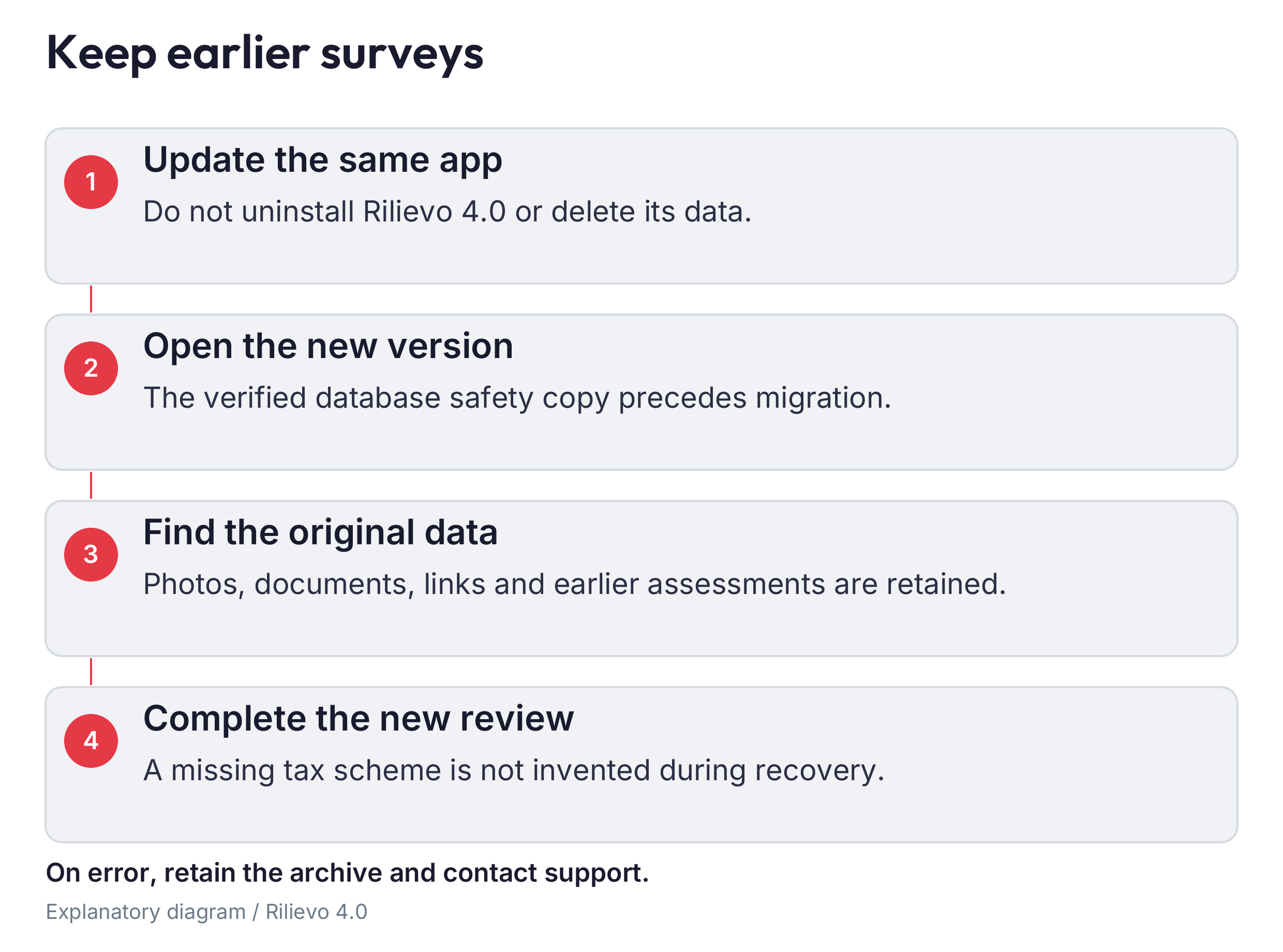
Update the same app without uninstalling it. On the first launch after the update, the app creates and verifies a local database safety copy and automatically recovers earlier surveys. This takes place when the app opens, not while iOS installs the update.
Photographs, attachments, notes, relationships, reports and original 5+2 assessments are retained. You do not need to import them individually. “Archive updated automatically” and “Archive provenance” describe the recovery.
An old 5+2 assessment is not automatically assigned a tax regime: missing information still needs checking. Before creating a new appraisal, review each asset’s regime, classification and requirements. Migration does not turn historical results into current professional attestations.
If assisted recovery appears: retain the device, read the message and contact support. Do not delete or reinstall the app. The preventive copy is local, is not a complete backup of every photograph, and can be lost if the app is deleted. Rilievo CE has a separate archive that Rilievo 4.0 does not automatically read.
03 Set language permissions and subscription
Open “Settings”, enter the professional’s name and choose “App language”. “Automatic” uses Italian when the iPhone’s main language is Italian and English otherwise; you can explicitly choose Italian or English.
Allow camera, photo library, location and microphone access only for the features you intend to use. If you refuse permission, change it in iPhone Settings, on the app’s page or under Privacy and Security. Paths vary with iOS. If dictation is unavailable, use the keyboard.
For the Italian market, Rilievo 4.0 is planned at €29.90 per month or €299.00 per year, paid as a single annual payment, with a 14-day trial for accounts eligible under Apple’s rules, once per subscription group. Before confirming, check Apple’s screen for the price, trial actually offered, first charge and renewal date. To avoid a charge after the trial, cancel at least 24 hours before it ends. In iPhone Settings, open your name › Subscriptions › Rilievo 4.0 and follow Apple’s procedure. Uninstalling does not cancel the subscription.
If you already purchased, use “Restore purchases” with the correct account. This restores access rights, not surveys. If verification fails, retain the error rather than buying another plan by trial and error. Saved archives remain readable and exportable after expiry.
04 Choose your AI route
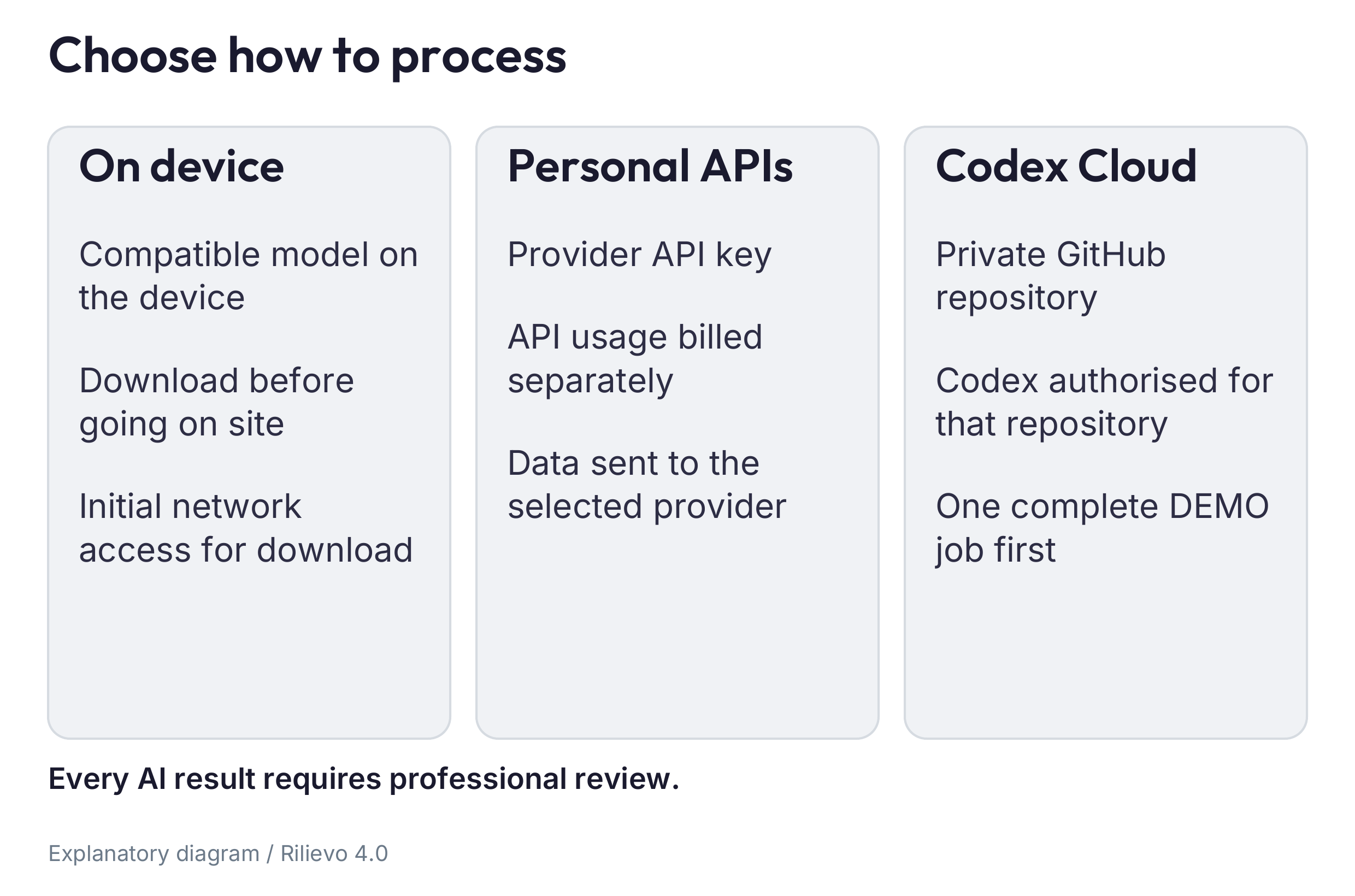
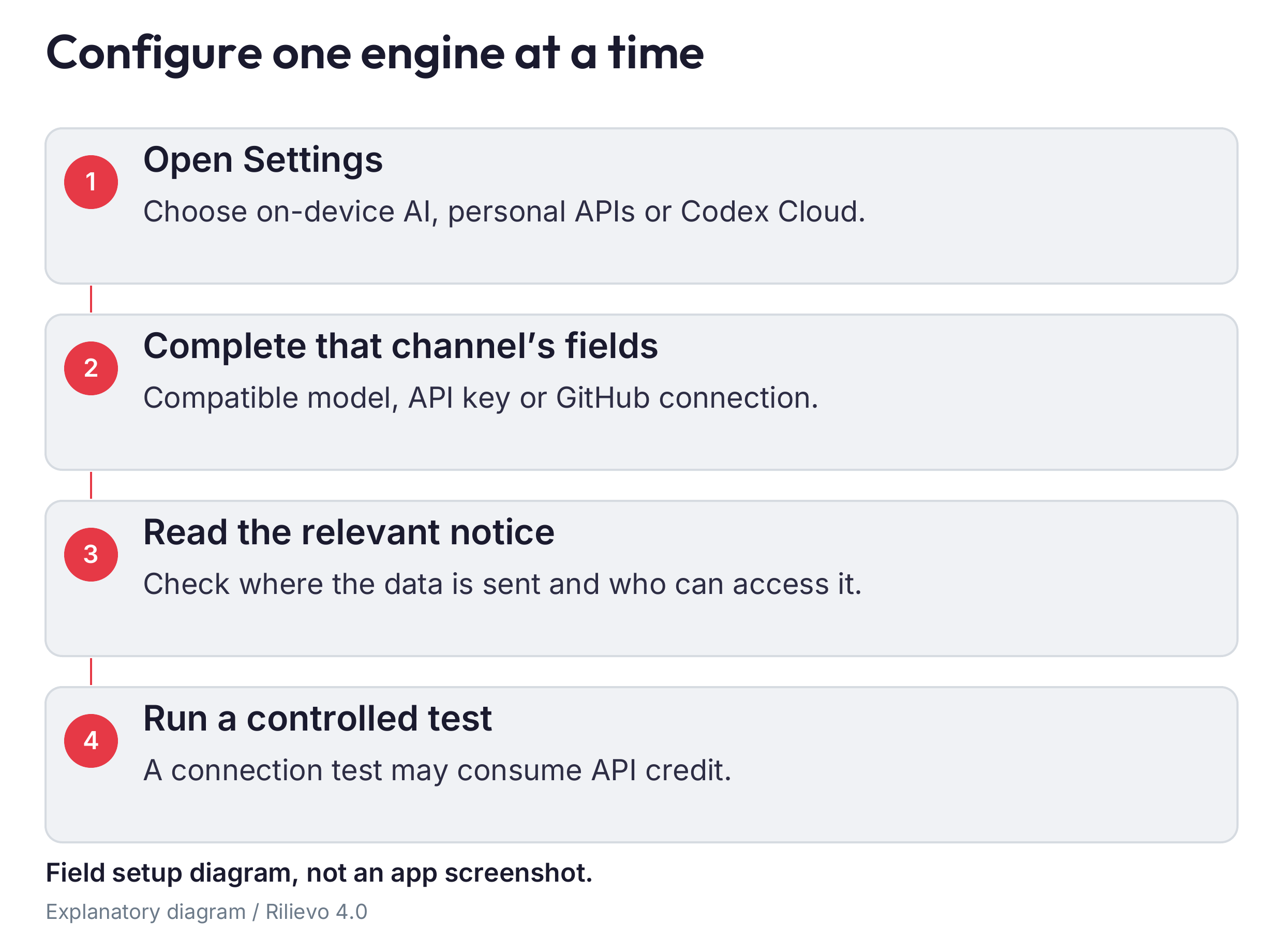
Open “Settings” › “AI engine”. Choose one route for the first test.
| Route | What you need | Where material goes |
|---|---|---|
| Local AI | Ready model and compatible iPhone | Model inference runs on the iPhone |
| AI via API key | API account and personal provider key | To the selected provider |
| Codex Cloud | Configured private GitHub and Codex access | To GitHub and Codex Cloud |
Start locally if you have a compatible model and want processing on the device. Choose APIs if you already have a provider account with active billing. Choose Cloud if you need that workflow and can also complete the GitHub setup.
The app subscription, any ChatGPT/Codex plan and API usage are separate costs. Never paste an API key into the GitHub field or a GitHub token into the API field. A ChatGPT subscription is not API credit.
Before sending data, check customer authorisation, confidentiality and service conditions. Accepting the notice in the app does not replace these checks. Material is not automatically anonymised. Even with local AI, maps, dictation, iCloud Photos and sharing follow their own settings.
05 Set up local AI
1. In “AI engine”, select “Local AI”, then “Local AI models” or “Local models”.
2. Read “Your device”. For photographs, choose a model shown as supporting images. Apple Intelligence, where available, handles text.
3. Check storage and download size. Prefer Wi-Fi and power; tap “Download” and wait until the model is ready. Downloads can use mobile data when iOS permits it, so check your allowance.
4. Tap “Use this model” if needed. Return to “AI engine” and verify the active model. Keep the basic settings for the first exercise.
5. Test a demonstration photograph and review the result before working for a customer.
Expected result: a ready model and an analysis referring to the correct asset and photograph. Starting a download does not mean the model is ready. MLX does not perform inference in the simulator: test on a compatible physical iPhone.
If it does not start: bring the app to the foreground, then check download progress, free storage and compatibility. Select a model appropriate for the device. Do not repeatedly start the same task. Web research is unavailable with the local engine.
For defensible drafting, local AI uses the document’s “Relevant content noted”: enter the useful extract and page after checking the original. Do not assume it read the whole PDF. The cause and evidence for late interconnection require manual entry in this route.
06 Set up the API service
An API key is a provider credential, similar to a password; it is not your app access code. Before creating it, check your provider’s official portal for availability, billing and account spending limits.
1. Open “Settings” › “AI engine” › “AI via API key” and read the notice.
2. Open “Provider, key, model and level”. Choose the provider that holds your account.
3. Copy the key from the official portal directly into the app’s protected field. It is stored in Keychain. Never put it in notes, photographs, chats, email or screenshots you will share.
4. Tap “Save and verify”. Choose a model and level available to your account; photograph analysis requires image support. Keep the initial speed and other options for the first test.
5. Use “Test the connection”, then run one complete DEMO analysis. The connection test itself is a provider request and may consume credit.
Expected result: a verified credential and a response relevant to the exercise. A successful connection checks service access, not the correctness of an appraisal.
If it fails: check provider, key, expiry, credit, limits and accessible model. Read the error before retrying. If you exposed the key, revoke it in the portal and create another. With a custom address, verify who operates the service; an intermediary can route data to other providers.
Start with “Essential” under “Automation”. This mode can also analyse plates and annotated photographs automatically, so read the options before collecting many images. Manual analyses, automatic tasks and retries can consume credit. “AI usage” provides a log and estimates to compare with your provider’s statement: it is neither an invoice nor a guaranteed spending cap.
07 Prepare GitHub for Codex Cloud
GitHub stores the Cloud material. A repository is a folder with history. The owner is the account or organisation that owns it. A pull request, or PR, is the page collecting a request and its responses. A token lets the iPhone work with that repository.
Create a private repository
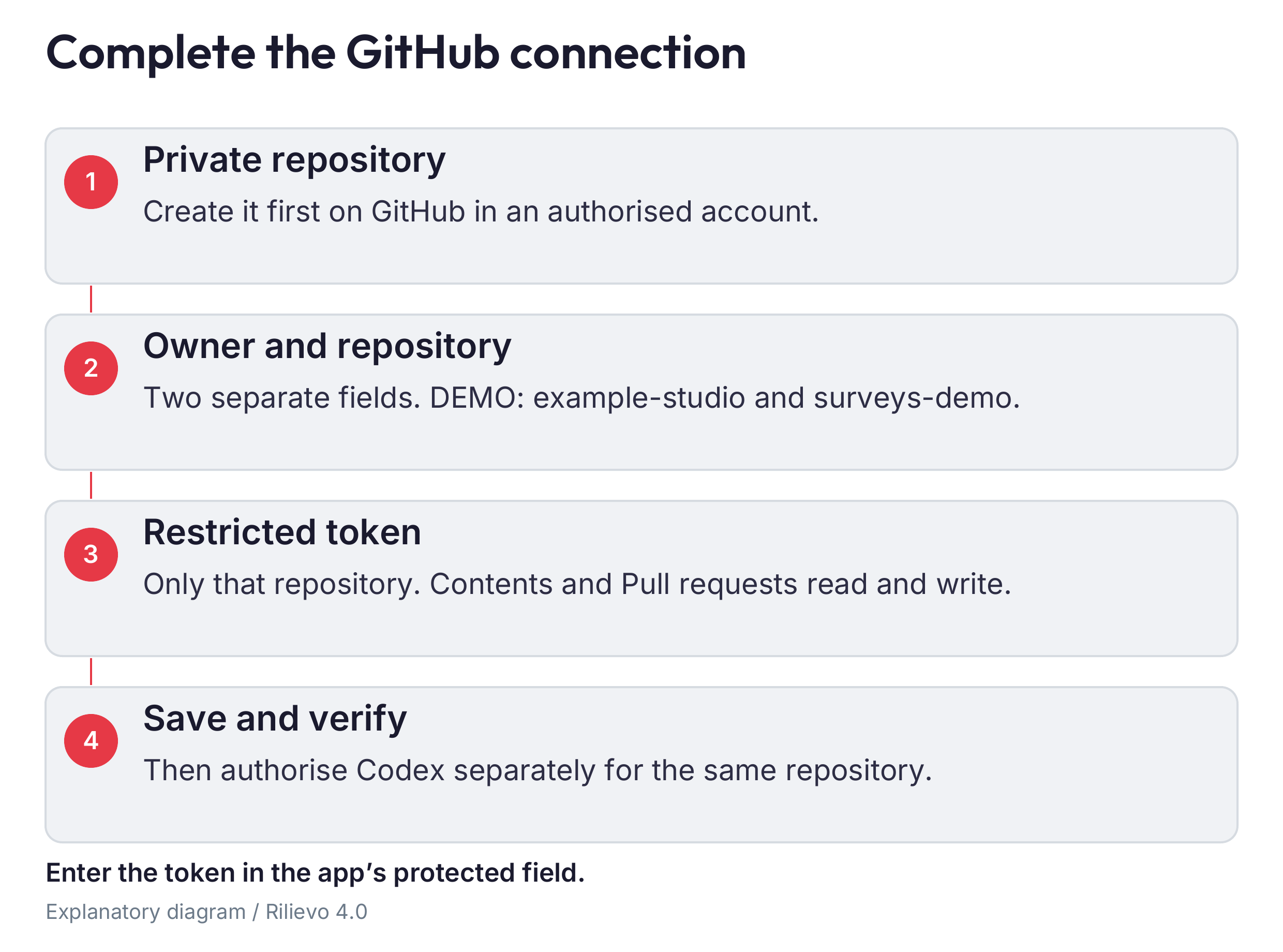
Sign in to GitHub in a computer browser. Create a repository dedicated to your appraisals, choose Private and add an initial README. Check who can access it. Do not use the producer’s development repository for customer data.
Record owner and repository name separately. In the demonstration address github.com/example-studio/demo-appraisals, the owner is example-studio and the repository is demo-appraisals. These are placeholders: replace them with your own values. Do not put the complete web address in the Repository field.
Create a restricted token
1. In GitHub open your profile › Settings › Developer settings › Personal access tokens › Fine-grained tokens › Generate new token.
2. Choose a name and expiry, then the correct Resource owner.
3. Under Repository access, choose Only select repositories and select only the dedicated repository.
4. Set Contents and Pull requests to Read and write; Metadata remains Read-only. This route does not need Actions or administrative permissions.
5. Generate the token and paste it directly into the app’s protected field. Complete any organisation approval or SSO step with your administrator.
Do not add administrative permissions or access to all repositories to fix an error. The official GitHub token guide explains management and revocation.
Connect the phone
Open “AI engine” › “Codex Cloud” › “GitHub and Codex connection”. Enter Owner, Repository and GitHub token, then “Save and verify”. Check the recognised account and repository. Use “Publish instructions for Codex (AGENTS.md)”, then check that AGENTS.md and _ai appear in the repository. This function writes to the repository, so use a dedicated one.
08 Connect Codex with the right authorisations
The token on the iPhone authorises the app to access GitHub. You must separately authorise Codex to access the same repository. The first connection does not create the second.
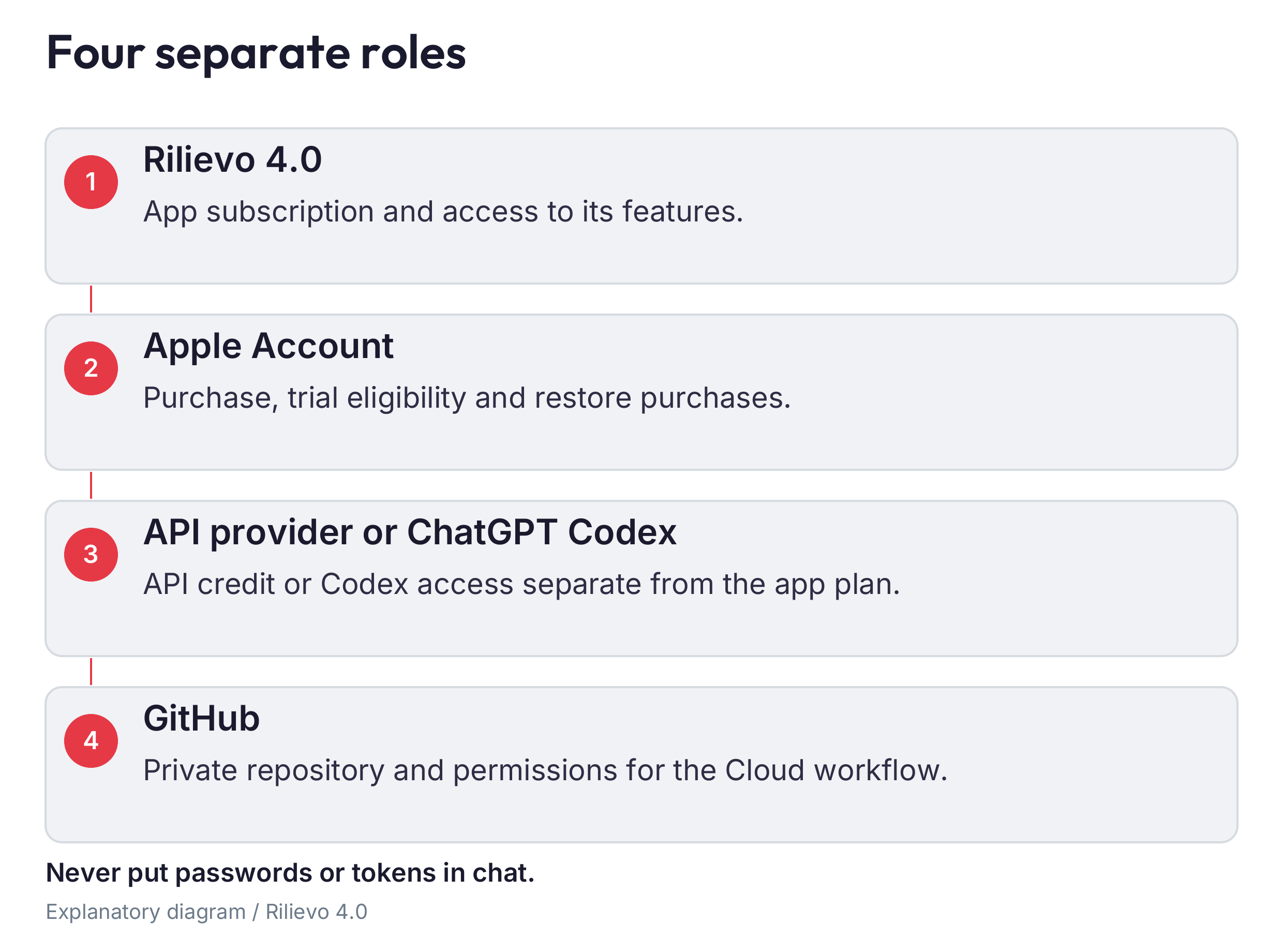
1. In a browser or the desktop app, sign in to the ChatGPT account that will use Codex. Check that your plan and organisation allow the Cloud route you intend to use.
2. Connect GitHub when prompted and grant access only to the dedicated repository.
3. For the PR workflow using an @codex comment, verify the GitHub integration and relevant legacy environment. Consult Codex for GitHub and the legacy environment guide. Automatic code reviews are not asset assessments.
4. If configuring the new Cloud experience instead, the official route is Work in › Cloud › Select environment › Create environment. Select the repository, follow Get started, review the setup, select Publish and wait for Environment published. The official Codex Cloud guide explains these steps. A published environment does not by itself demonstrate that the app’s PR workflow is connected.
5. In the app, check “Job trigger”. “Comment @codex on the PR (integration required)” uses its corresponding integration; “Labelled PR only (started externally)” prepares the request for an external start; “Manually from Codex Cloud in a browser” requires you to start the work in your account. They do not automatically create an unconfigured service.
Leave the default model unless you have a verified reason to change it. Preferences indicated by the app do not guarantee the model actually used by the service. Manual research also requires network access and allowed destinations in the environment.
If access is missing: stop submissions, retain the error and fix the particular authorisation. Do not disable safeguards or submit repeated tasks. A complete live Cloud cycle has not yet been documented in the reference configuration: run the following exercise before using customer data.
09 Complete your first DEMO exercise
1. Tap “New appraisal” and prepare the exercise named “DEMO without customer data”. Check the demonstration customer, location and professional.
2. Create an asset, photograph a demonstration object and add an arrow with a concrete note. Tap “Done”.
3. For Cloud, use “Sync now”, open the job in the “Codex” tab and check the repository and PR. An open PR demonstrates submission, not completion.
4. Check the request, any @codex comment and the response. Wait for the result expected by the app, then sync.
5. Open the assessment: it must refer to the asset, photograph and arrow you selected. Compare it with what is actually visible. Perform the same content check for local and API results.
6. Generate a draft, export the package and open it. The exercise is complete only when collection, analysis, response import and export work together.
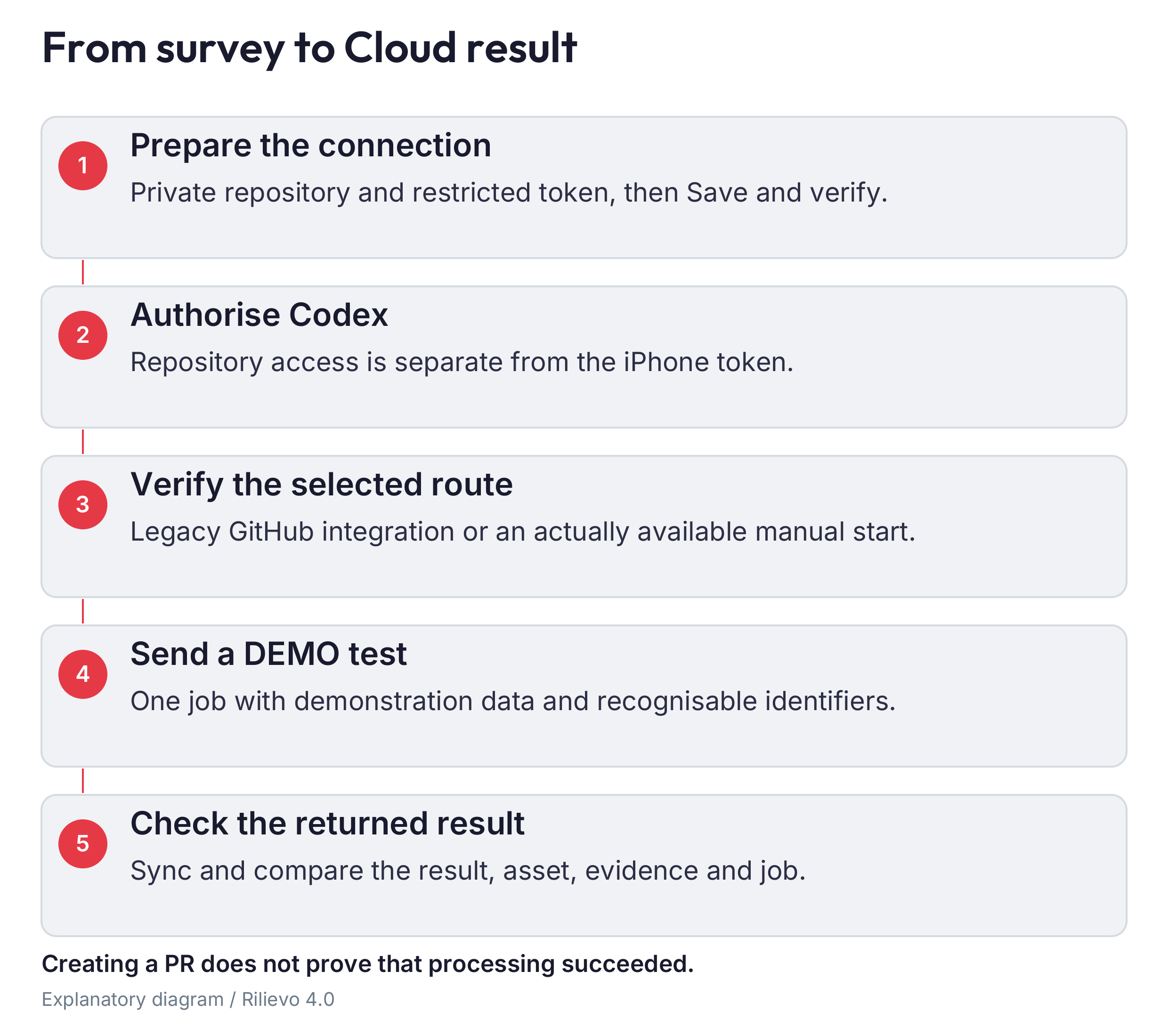
For a manual start, have the result returned in response.json in the job folder on the correct branch, following the instructions published by the app. An ordinary human comment is not imported as a result. If the app keeps waiting after a response, record the PR number, job and message. Do not create duplicate tasks simply to obtain a green indicator.
10 Collect evidence that can be understood
Always check the current asset code before taking a photograph: subsequent photographs remain associated with that asset until you change it. Collect an overview, a readable plate, relevant details and evidence of actual operation. A photograph of a network device alone does not prove data exchange.
Use precise arrows and notes describing what you observed. Stop dictation and reread the text. Colours and indicators help organise work; they are not attestations.
For documents, use the multipage scanner or import from Files. Check edges, pages, serial number, revision and asset association. Correct every OCR extraction by comparing it with the original. Retain any originals you need: archive copies may be resized.
In 4.0, associate evidence with the relevant requirement and separate the document groups shown by the app. Distinguish photographs, documents, third-party statements and your own direct findings. Attaching an irrelevant document does not make a requirement satisfied.
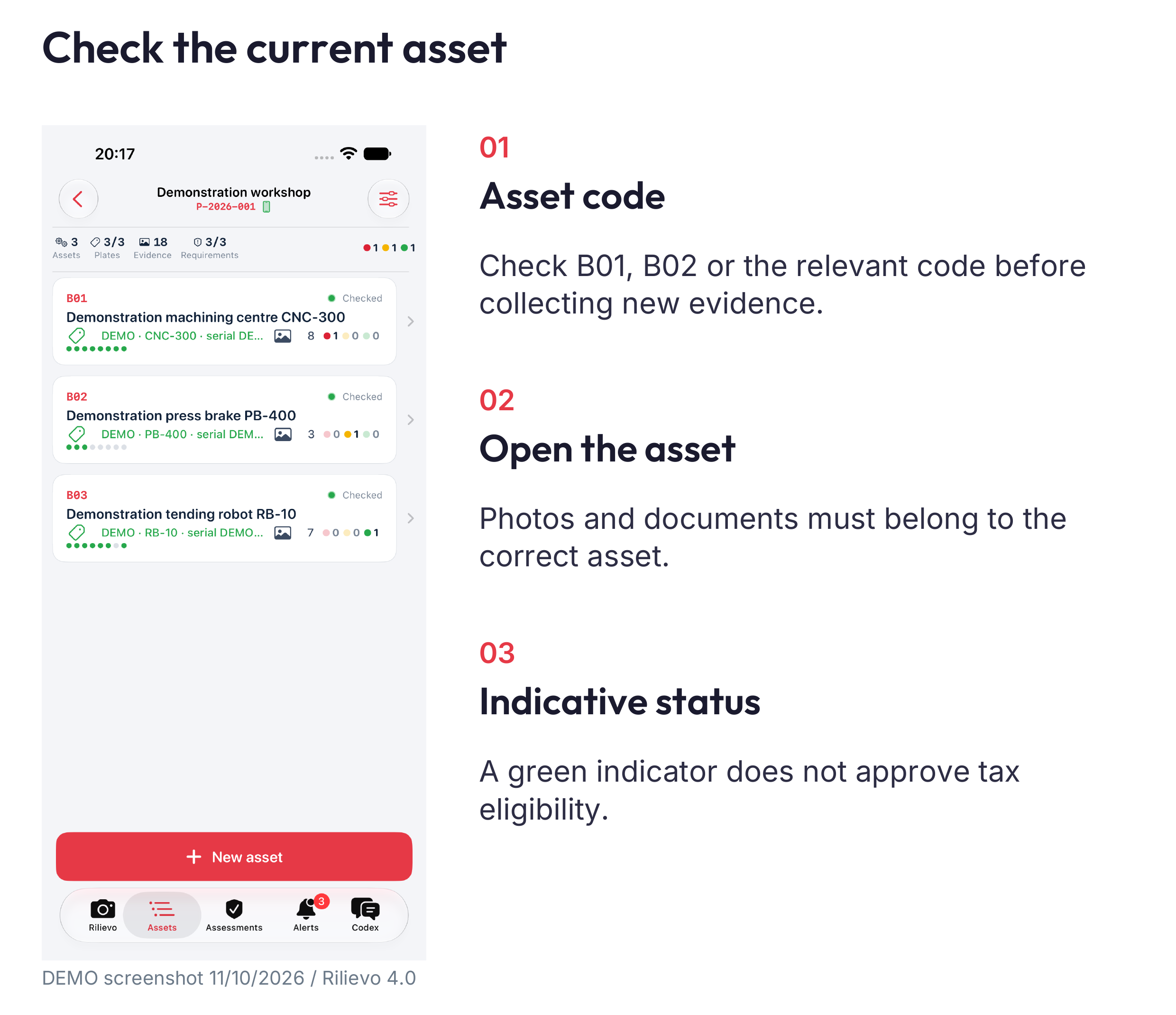
Copying camera captures to the photo library may be enabled: check “Settings” › “Camera and arrows” › “Photos library”. iCloud Photos may sync these copies with your Apple account. Imported material and scans do not necessarily follow the same copying path.
11 Complete the professional decisions
In the appraisal panel, open “Appraisal data”. Check the assignment regime, report form, type, phase and visit dates. For each asset, complete acquisition method, documented dates, catalogue family and entry, regime and requirement profile. Do not automatically apply 5+2 to every asset.
Investment, first use, interconnection and verification of interconnection are different events. Do not copy the invoice date into every field. Defensible drafting requires an explicit verification date; a time stamp does not replace it.
For late interconnection, document the cause, first-use configuration, changes and dated evidence. If evidence is missing, state the limitation rather than inventing a history. Documentation obtained late is different from interconnection performed late.
Defensible drafting requires actual professional declarations and findings; it is not a shortcut for hiding gaps. Read each block and address its stated cause. “Eligible total” remains an amount declared by the company and requiring verification: the detailed cost dossier is not implemented, and the app neither reconciles invoices nor certifies tax entitlement.
12 Generate and review PDF and Word
Open “PDF and Word reports” › “New report”. Choose the correct type, language, revision, group and contents; keep “Also in Word (.docx)” enabled if you want both formats. Tap “Generate PDF and Word” when requesting both formats and open the files: a filename in a list is insufficient.
Check asset identities, regime, classification, dates, requirements, photographs, captions, references, conclusions and safeguards. “Completed” means a response was imported, not that its contents are certified correct. “Issue for signature” does not sign or approve the document.
In Microsoft Word, select all and update fields with F9, or fn F9 on a Mac if necessary. Update the table of contents by selecting the entire table, then compare its entries and numbers with the actual pages. Reopen the final PDF after any changes. A preview or automatic conversion does not guarantee current cross-references.
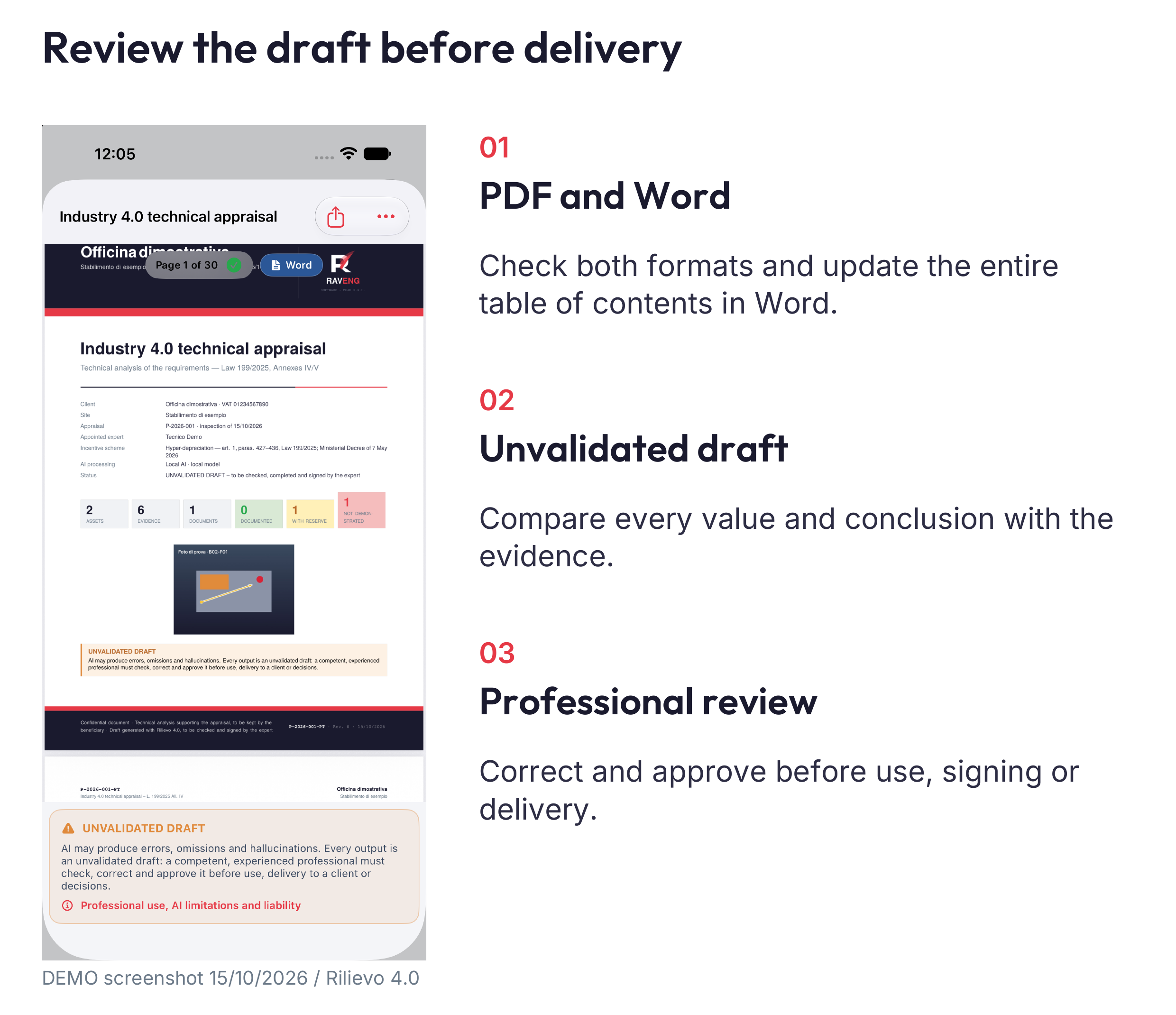
Deliver only after the responsible professional has checked, corrected and approved the output. Retain the approved version and working files: editing an exported Word document does not automatically update data or existing reports inside the app.
13 Personalise reports and understand integrity proofs
For branding, open “Settings”, scroll to the “Reports” group and tap “Logo and letterhead”. Import a logo you are entitled to use, then check the preview and print proof. For an individual report, choose the Studio or RAVENG branding. Personalisation does not remove safeguards or software attribution.
File fingerprints help check integrity. “Apply time stamp” is optional and initially off: read the notice before enabling it. Requests send fingerprints rather than file contents to the listed services and can remain queued while offline.
A valid proof concerns file existence and integrity at its particular verification level. It does not prove truth, authorship, capture time or compliance, and is not a signature or qualified time stamp. An unrecognised certificate chain does not establish a reliable date. You can leave this feature off while learning the ordinary workflow.
14 Retain exports and your archive
Use “Export dossier” in the appraisal panel, choose an authorised folder and open the exported file. Check the expected documents, images and data. Keep at least two copies in appropriate locations and verify that both open. Export Word separately when necessary.
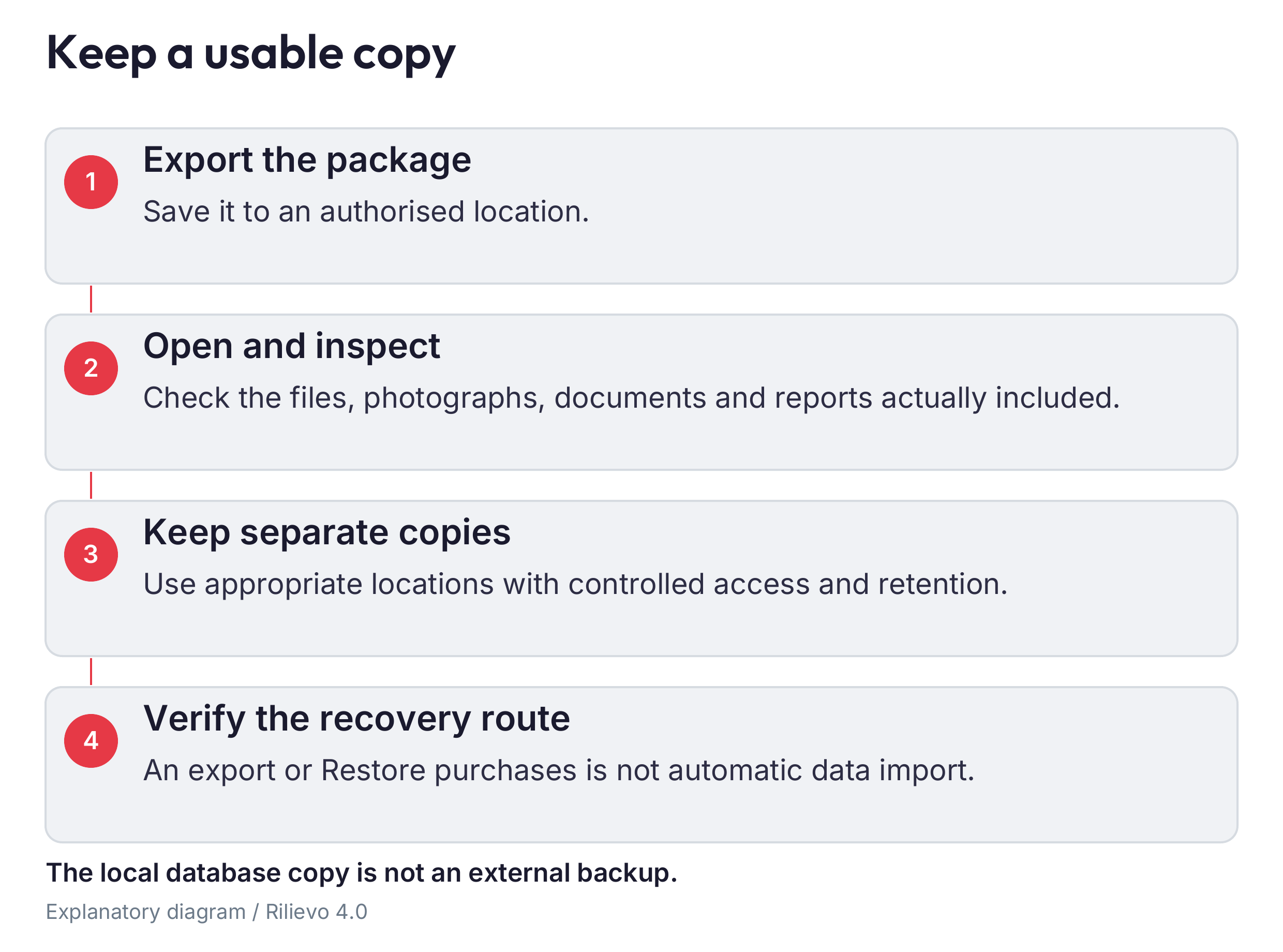
An exported ZIP is not automatic restoration of an editable app archive. “Restore purchases” does not restore data. Before changing phones, deleting data or reinstalling, ask for the supported recovery route and retain your copies. Deleting inside the app does not automatically delete GitHub copies, PRs, Cloud conversations, exported files or backups.
15 Resolve problems in order
| What happens | Check first | Then act |
|---|---|---|
| Subscription unrecognised | Apple account and connection | Restore purchases without buying twice |
| Local AI will not start | Ready model storage compatibility | Bring to foreground and test DEMO material |
| API request refused | Provider key credit model | Read the error and correct that issue |
| Cloud has no response | App token Codex access correct PR | Retain PR number and message without duplicating |
| Archive needs recovery | Message and available copies | Do not uninstall and contact support |
| Report incomplete | Missing data storage original files | Correct regenerate and check every file |
For support, prepare app version and build, iPhone model, iOS version, steps and error text. Use demonstration or redacted material. Never send passwords, tokens or confidential archives in a chat.
Before leaving for the customer, confirm: app updated without deleting the archive, verified access, ready engine, successful DEMO, adequate storage and battery. Before delivery, confirm: relevant sources, checked judgements, updated contents, professional approval and two verified copies.