
Rilievo 4.0 · Rev05 · 15 October 2026
Rilievo 4.0 Complete guide
AI settings evidence appraisals and archive management
01 The workflow from evidence to a reviewable document
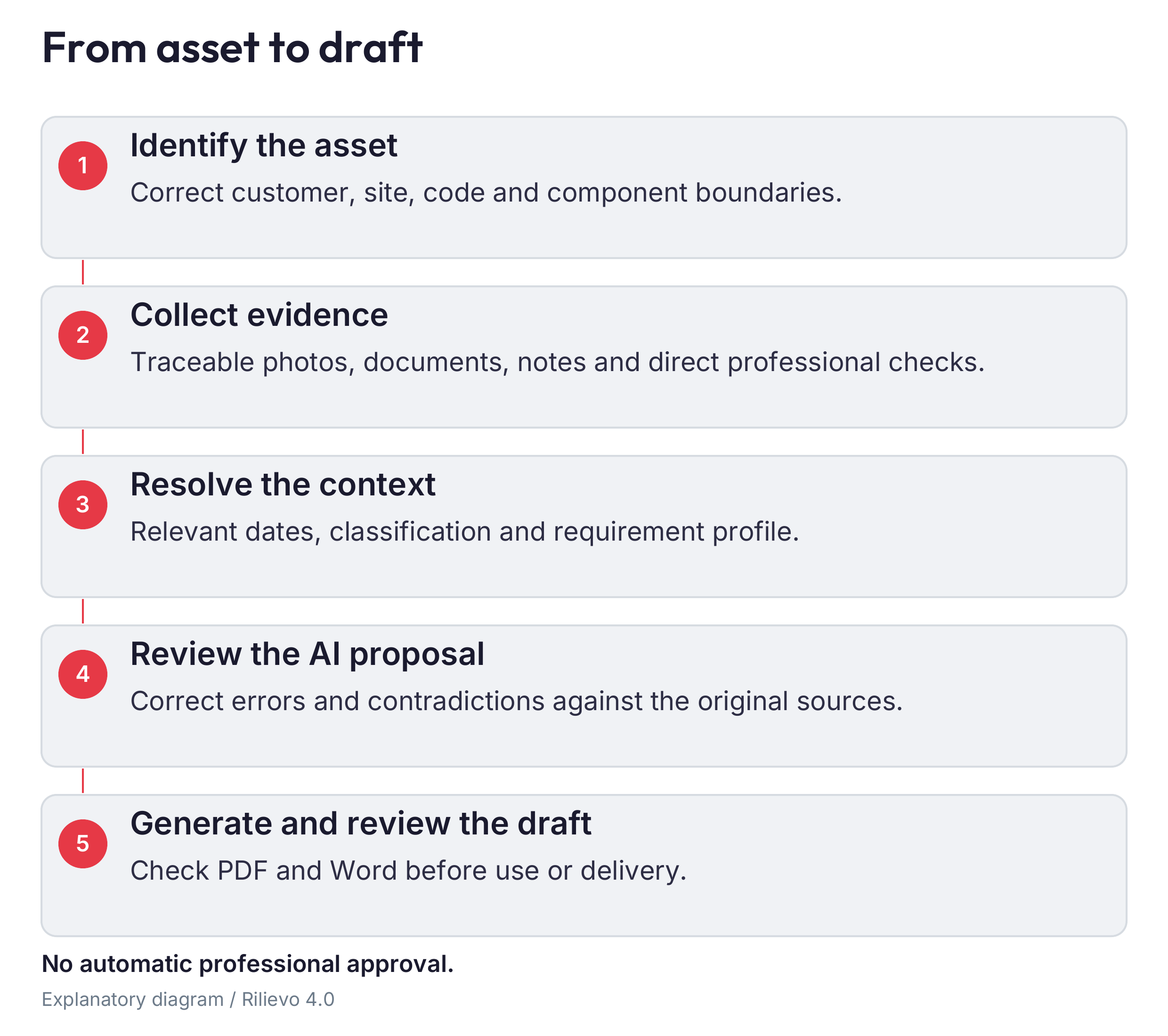
The quality of an appraisal depends on a traceable relationship between the identified asset, the condition observed, the document examined and the professional’s conclusion. The app records and organises these steps; AI proposes readings and text. An attractive document is still insufficient if its statements cannot be traced to supporting evidence.
This manual follows the actual work: prepare the iPhone, choose an AI route, test it without client data, open the assignment, register assets, collect relevant evidence, check dates and classifications, review the results, generate PDF and Word documents and preserve the package. Read chapters 2 to 11 in order during first setup. In the field, use chapters 12 to 17; return to chapters 18 to 22 before delivery.
Quoted names identify interface labels. External services may change their screens: if a name differs, use the official link and understand the purpose of the step before proceeding. No configuration requires you to give support your Apple password, ChatGPT password, GitHub token or API key. Instructions containing demonstration account names must be adapted to your authorised account, rather than copied as working credentials.
Rilievo 4.0 and Rilievo are separate apps. The first supports technical Industry 4.0 appraisals; the second supports machinery inspections. They share some concepts and formats, but purchases, local containers and archives do not become shared simply because they carry the same brand. Check which app is open before looking for an assignment or restoring a purchase.
Working rule: a green indicator describes the particular check that produced it. It does not automatically establish a complete assignment, machinery safety, entitlement to a tax incentive or approval of the report. If evidence is missing, preserve that gap and arrange the necessary follow-up. Do not fill it with a plausible description merely to improve the presentation.
02 Prepare the device subscription and working material
The app requires an iPhone running iOS 17 or later, sufficient free storage and an Apple account for purchases. The iOS requirement alone does not make every local AI model usable: read the compatibility information on the actual device. Models may occupy several gigabytes; photographs, PDFs, reports, Word copies and backups require additional storage.
Before the visit, charge the phone, prepare an additional power supply and check access to your authorised folder in Files. If you will work offline, download the compatible model in advance and open the documents you will need. Do not rely on the factory network without arrangements with its IT contact. Bring the measuring instruments and protective equipment required for the work: the app does not replace them or make an unsafe inspection acceptable.
The Rilievo 4.0 subscription is separate from Rilievo’s subscription. For the Italian storefront, the planned price is €29.90 per month or €299.00 per year, paid in one annual instalment for the annual plan. A 14-day introductory trial is planned for accounts eligible under Apple’s rules, once within the subscription group. The trial actually offered, price, billing date and conditions shown by Apple before confirmation apply. Prices and conditions in other storefronts may differ.
The subscription does not include API credits, a ChatGPT/Codex plan, additional GitHub storage or services, or a professional appointment of CE4U S.r.l. or Carlo Tenca. Configuring AI may involve separate contracts and charges. An annual price does not mean that its monthly equivalent will be charged each month.
Manage renewal or cancellation through the Apple account’s Subscriptions settings. Check the date shown and cancel with the advance notice required by Apple. Uninstalling does not cancel the subscription. “Restore purchases” recovers the entitlements available to that account; it does not recover deleted photographs or assignments. Before making an unexpected payment, check the app, account and plan. Buying a second subscription is not a reliable way to unlock the first one.
03 Install update and recover earlier 5+2 surveys
Use the official RAVENG link when distribution is active. In the App Store, verify the app name and developer, download and wait for “Open”. If the official link is missing, public availability has not been confirmed: do not obtain packages from unrelated websites. For an authorised beta, install TestFlight, open the official invitation and check the offered version. A beta can expire; a purchase test in beta does not establish a production purchase.
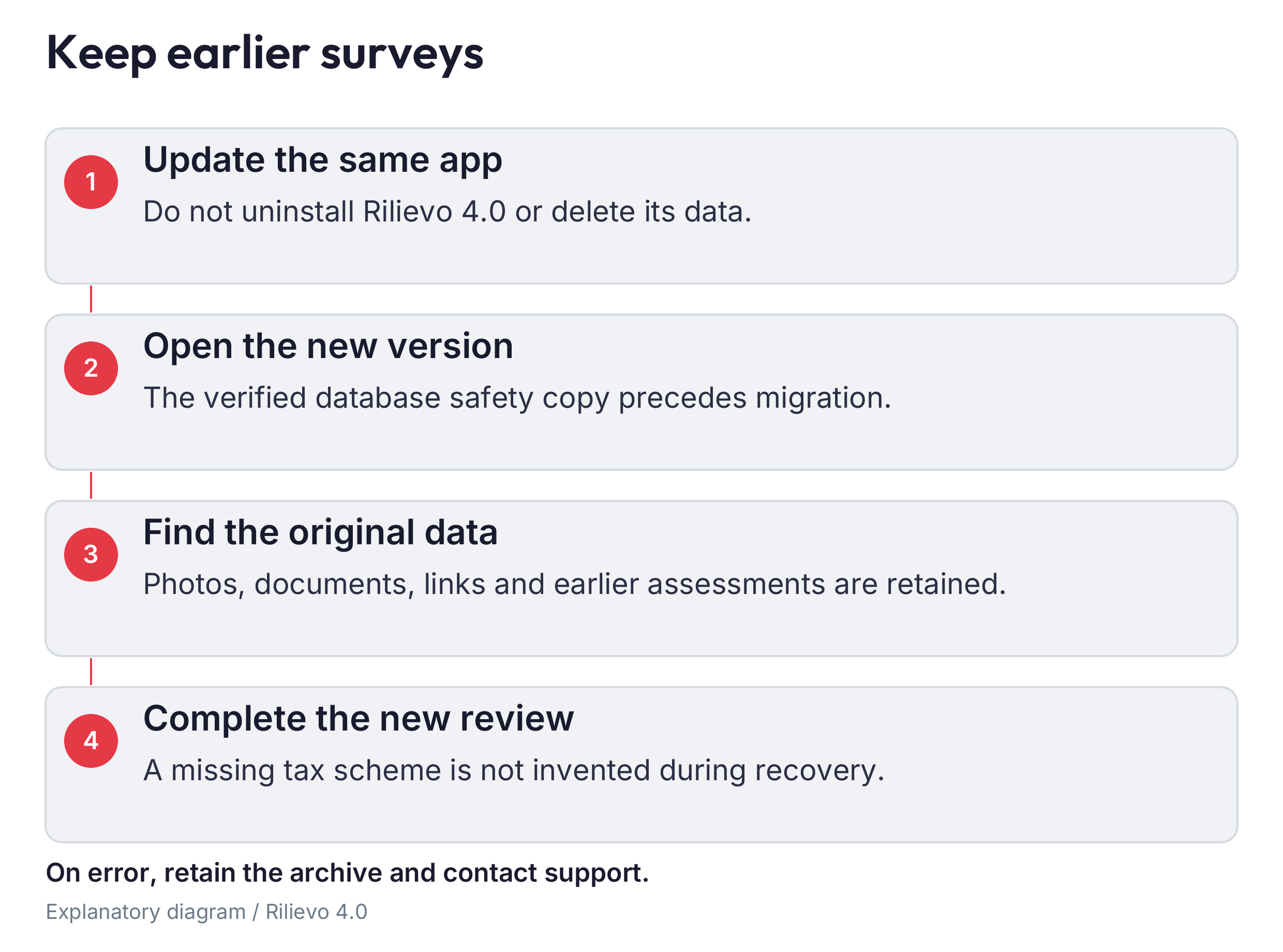
Update the existing app without uninstalling it. First export important assignments and verify your external copies. The new version keeps Rilievo 4.0’s identity: automatic recovery concerns the archive already present in the same app’s container. It is not automatic transfer from the separate Rilievo app, from a ZIP package or from a different phone.
Recovery takes place at the first launch after the update: iOS does not run the app’s migration code during installation. Before opening the database, the app prepares and verifies a local copy of the relevant database files. It then opens and upgrades the existing archive, records the origin of historical surveys and shows a notice for those requiring review. A second launch must not duplicate them.
Original data, 5+2 assessments, photographs, attachments, arrows, notes, relationships and reports are preserved. Migration does not assign a missing tax regime, invent dates or convert an old assessment into a current professional declaration. Unreadable payloads are retained for assistance. If the archive cannot open, the app presents recovery; do not try to “unlock” it by deleting the database or application.
After launch, count assignments, open several historical surveys, compare photographs and documents and inspect an original report. Before regenerating it, complete the relevant classification, regime and dates; retain the earlier document as a historical revision. The preliminary database copy stays inside the app and is not a second full copy of its media. Maintain a separately verified external backup as well. Do not dispose of the old phone until you have checked the archive on any replacement device.
04 First launch language and iPhone permissions
Open “Settings” and choose “App language”. Automatic selection uses Italian when the device’s primary language is Italian, and English otherwise. You can explicitly choose “Italiano” or “English”. Entered text, codes and historical results do not automatically become approved translations; check the language of newly generated reports separately.
Enter the inspector’s name and read it before each document. A completed name, logo or signature space does not constitute a signature or a professional appointment of the software provider. Check “Camera and arrows”, archive resolution and whether annotation opens after capture. Take a trial photograph and enlarge a nameplate to confirm that serial numbers and small characters remain legible.
Grant permissions according to your needs. Camera access supports photographs and scanning; location may suggest the site and coordinates; microphone and speech recognition support dictation; Photos supports library import or copying; notifications support alerts. Without location, verify the site manually. Without the microphone, use the keyboard. To change a declined permission, open the app’s iOS settings or Privacy & Security and change that specific authorisation.
Dictation requires on-device recognition supported by the device and language; otherwise use the keyboard. Always reread dictated notes. A serial number, a negation or a numeric value recognised incorrectly can change the technical meaning. Stop dictation before discussing confidential information unrelated to the record.
Check the option that saves every capture to the Photos library. With full access, copies can be placed in the app’s album; with limited access, they may be saved without that album; with access denied, the file stays inside the app. iCloud Photos may synchronise the copies with the Apple account. A client’s restriction on cloud transfers therefore needs to be considered for Photos, Files, backups, maps and sharing, not only for the selected AI engine. Test your chosen combination before entering restricted premises.
05 Privacy and accounts identify every destination
Before the assignment, decide which data may be collected and which services may receive them. Check the client’s agreements, the controller’s instructions, authorised people, retention periods and destinations. Collecting fewer personal details and trade secrets is often more effective than trying to remove them later. Operator names, badges, business-system screens, coordinates and statements can contain confidential information.
There is no general automatic anonymisation. A photograph can show personal data in the background; a document can contain signatures or names even when its first page appears harmless. Inspect every page and select only necessary material. Acknowledging a disclosure in the app records your decision to activate a route; it does not replace the client’s permission or the organisational checks required for those data.
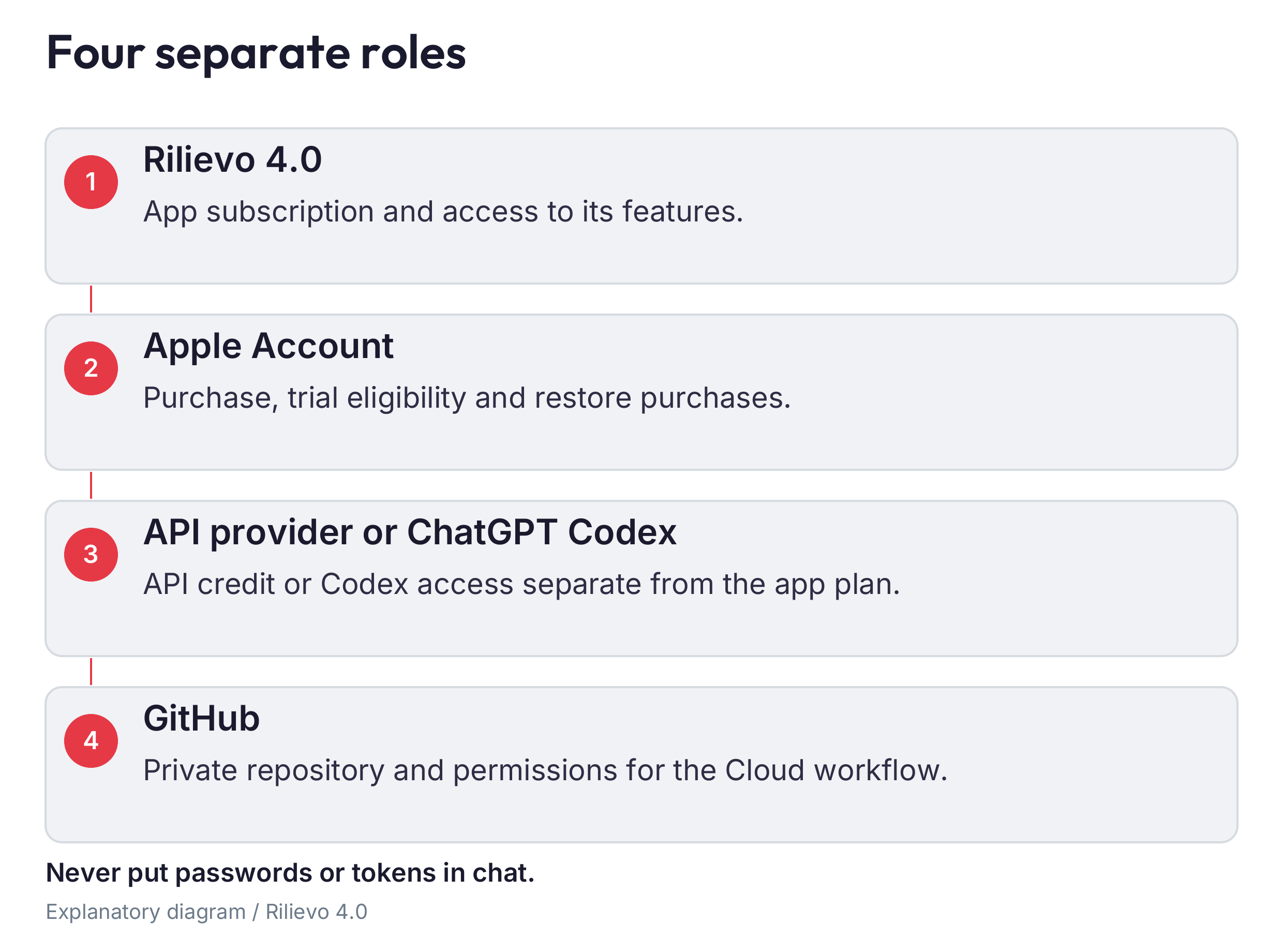
Keep four accesses distinct: the Apple account for the app and purchases; the provider’s API contract; GitHub and its repository token; and ChatGPT/Codex with its own GitHub authorisation to process that repository. Successful access to one does not configure the others. For organisational work, use approved accounts and permissions instead of sharing personal credentials among technicians.
API keys and the GitHub token entered in the app are kept in the iPhone Keychain. Do not copy them into survey notes, documents, prompts, screenshots or support messages. If a credential is exposed, revoke it at the service and replace it. Deleting the screenshot does not make the credential secret again. A password manager approved by your organisation is preferable to an unprotected note.
Local PDF and Word generation does not send photographs to an external typesetting service. The API route sends material to the selected provider; Codex Cloud uploads it to the repository and makes it available to authorised processing; a local model performs inference on the iPhone. Each statement concerns that particular operation. Other phone services keep their own destinations and retention rules, and previously transmitted copies are not withdrawn simply by changing the AI setting.
06 Choose an AI engine for the assignment
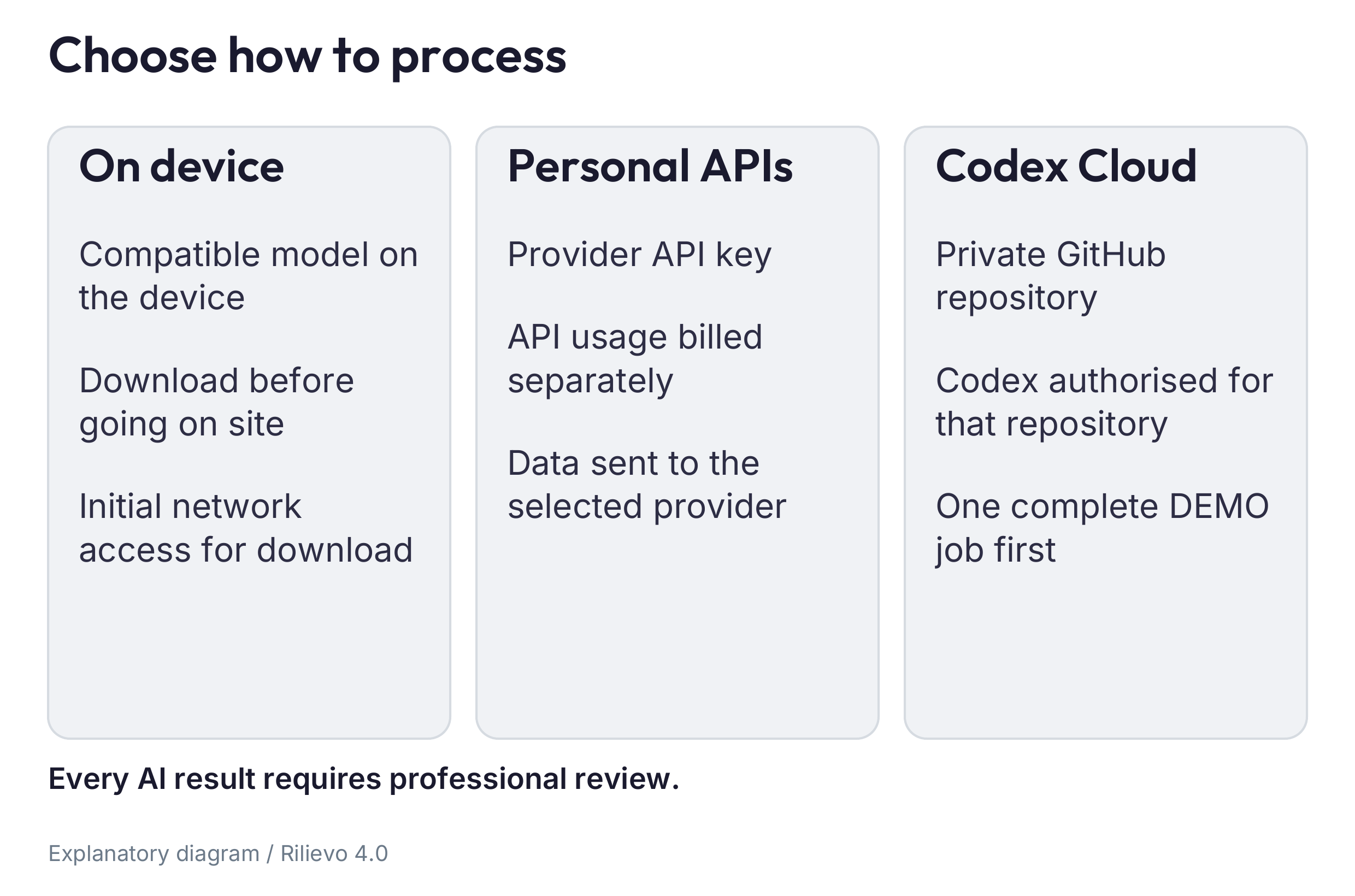
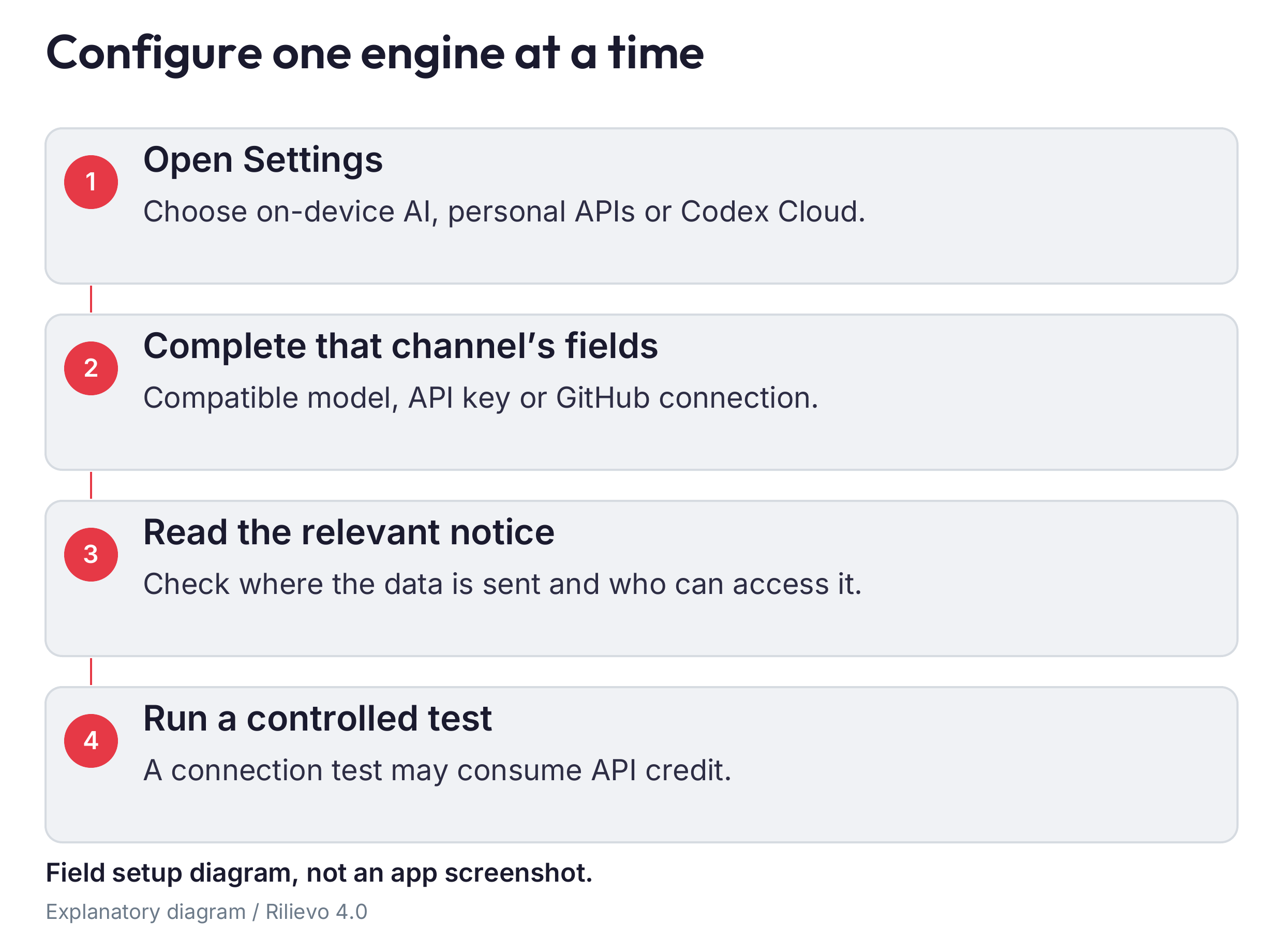
Open “Settings” → “AI engine”. The three options are “Local AI”, “AI via API key” and “Codex Cloud”. Choose according to confidentiality, device compatibility, network availability, research needs and your ability to monitor results. Do not start a real visit with a route that is only partly configured.
“Local AI” is appropriate when inference must remain on the device or connectivity is unreliable. It requires a ready model and a compatible iPhone. Online research is unavailable in that route, and not every model can read images. Local analysis does not make the content verified, nor does it replace obtaining the manual or the professional’s examination of the source.
“AI via API key” connects the app directly to a provider using your key. It can be convenient when your practice already manages API billing, permissions and limits. The selected model must support vision to analyse photographs. A text-only model does not become image-capable by choosing a higher reasoning level. Actual capabilities depend on the model, account, endpoint and current service availability.
“Codex Cloud” uses GitHub as the workspace and an authorised Codex integration. It needs more initial preparation and a complete test of the result returning to the app. It can support detailed work and research where the permissions and environment allow it. An open PR or a bot reaction does not mean that analysis is complete.
For controlled initial usage, choose “Settings” → “Automation” and the default “Essential” mode under “When the AI runs”. Nameplates and annotated photographs may be processed after a pause; asset verification, documentation searches and alert review are requested when needed. Closing updates missing or outdated assessments before producing the report. “Automatic” can start recurring work and increase consumption; enable it only after observing the behaviour of your chosen route.
Start with a small, repeatable DEMO case. Keep the same evidence when comparing engines, and compare factual accuracy, omissions, references and required corrections rather than writing style alone. No engine should be selected solely because it expresses greater confidence.
07 Set up API access without confusing subscriptions
An API key is a provider credential. It is not the password for the provider’s website or an Apple subscription code. A ChatGPT plan does not automatically supply API credit. Sign into the provider’s official portal with the approved account, check API availability, billing and limits, and create a dedicated key where the service allows it. Do not use credentials supplied by unauthorised people.
In the app, open “Settings” → “AI engine” → “AI via API key”. Read the transmission disclosure. Select the provider, paste the key into the protected field and tap “Save and verify”. Wait for the available-model message. With an existing key, the command may verify and refresh the model list. A valid key with no usable models does not complete setup.
Choose an offered model and reasoning level where available. Check image support for photographs. The choice should suit the task, rather than simply selecting the newest name or maximum depth. Run “Test the connection”, then a complete job with DEMO material. The first checks communication with the service; the second checks that images, output and import work in the app’s workflow. Even the connection test may consume provider resources.
For a custom service, confirm its base address with the IT administrator. A wrong address can send both data and credentials to the wrong recipient. Use the approved secure connection and do not guess path suffixes. With OpenRouter, also check the providers to which a job may be routed. When changing provider, check model, authorisation and charges again.
“Ultrafast”, when available for the selected OpenAI model, changes the requested service. As of 15 October 2026, the indicated rate is six times the standard rate for the affected tokens. Read the current notice before enabling it. It does not fix credentials or output-format problems. A standard-service fallback is recorded in the job. Provider statements take precedence over app estimates. A technical store:false setting is not a general zero-retention guarantee; the provider’s conditions and controls still apply.
To stop the route, revoke its consent on that page and return to Local AI. “Delete the key” removes the credential from this iPhone. To prevent use elsewhere, revoke it at the provider as well. Requests already transmitted remain subject to the provider’s retention policy.
08 Prepare and use Local AI
Open “Settings” → “AI engine” → “Local AI” → “Local models”. Read “Your device”: available RAM and the iPhone model affect execution. The app can be installable even when no catalogue model is executable. MLX models require a compatible physical iPhone; running them in the simulator is not a valid execution test.
Read the model card. “Vision” identifies image support; “Text only” serves a different purpose. Check size and licence as well. Tap “Download” with reliable Wi-Fi and adequate storage, wait for completion and choose “Use this model” if it is not already active. Do not leave for a visit relying on an almost-complete percentage: process a DEMO photograph and check a real result. A completed download alone does not show that the model can handle the size of your assignment.
Apple Intelligence, when available in the system, requires iOS 26 or later and handles text only in this app. It is separate from Siri’s ChatGPT extension and does not replace a Vision model for photographs.
Model weights are downloaded from Hugging Face. That download contacts an external service but does not require sending survey photographs there. Subsequent local inference stays on the device. “Local” does not disable iCloud Photos, backups, maps, purchases or sharing. Apply the client’s restrictions to those services separately.
If the phone heats up, slows down or interrupts processing, save the work, reduce the material in one request and choose a lighter compatible model. Do not uninstall the app to clear a cache: you could lose the archive. Use model-management functions and check storage carefully; forgetting a model does not necessarily remove every cached weight immediately. Downloads can use cellular data if iOS permits it. Wi-Fi is a recommendation, not an automatic model-download filter.
Keep the app active during a job. Persistent background downloading does not guarantee background inference. In defensible drafting, the local route reads a document’s annotated relevant content, not automatically its complete PDF. Record the page and the content actually examined. The route also does not automatically produce every structured late-interconnection proposal: enter causes, initial characteristics and dated proof manually. If the system model repeats placeholders or exceeds its context, use a suitable model or an authorised external route and review the new output.
09 GitHub create a dedicated private repository
For Codex Cloud, a repository is the store with the material’s history; a branch is a separate line of work; and a pull request, or PR, gathers a job and its responses. You do not need to program, but you must know who has access. Use a private repository dedicated to surveys, separate from the app’s development repository and other projects. Publishing Codex instructions writes files: do not use that operation in a repository holding unrelated work.
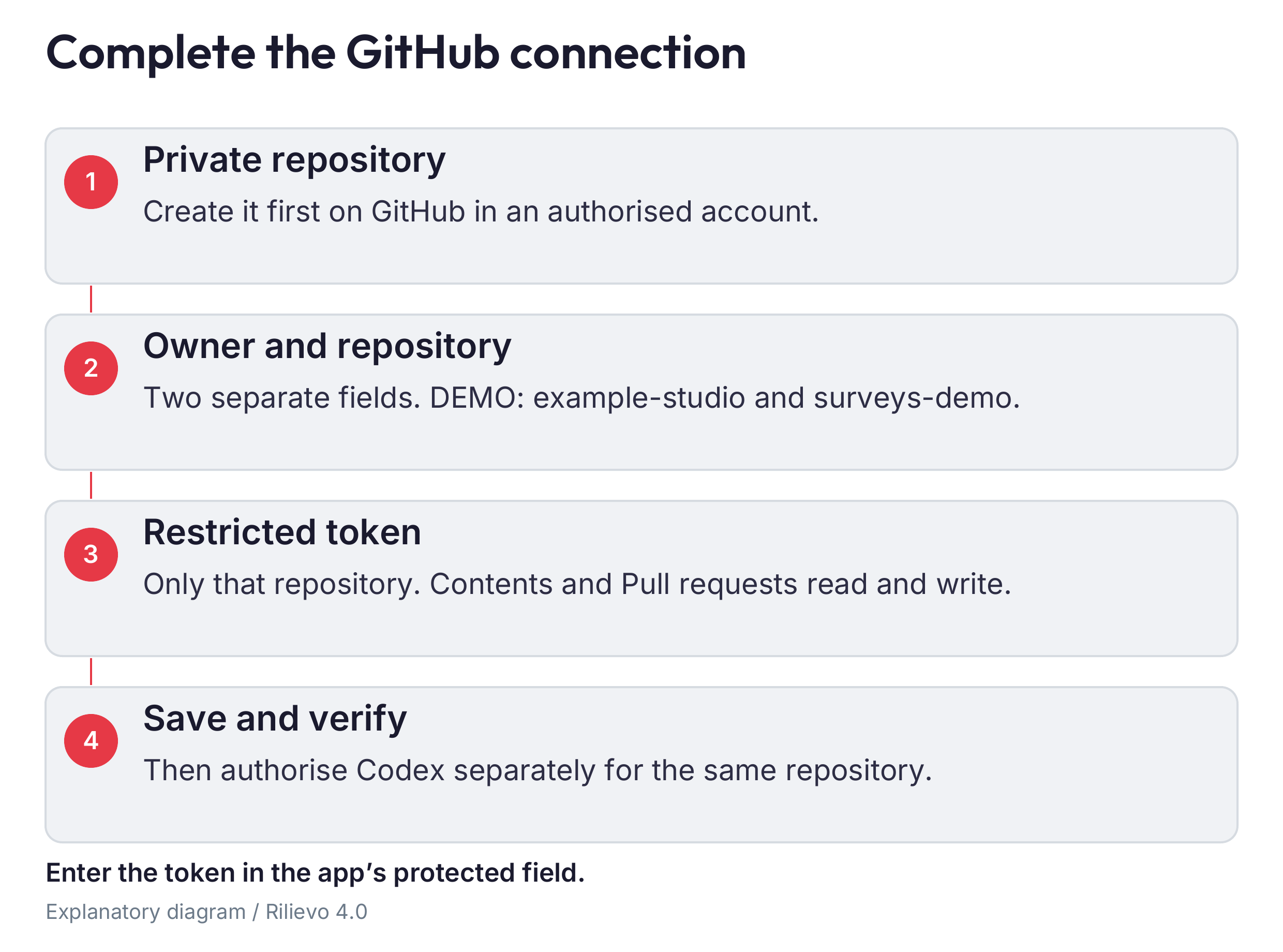
Sign into GitHub in a browser, verify the email address and apply your practice’s account protections. Create the repository, select “Private” and include an initial README so that a default branch exists. Record owner and repository name separately. For the illustrative address github.com/example-practice/inspection-appraisals, the owner is example-practice and the repository is inspection-appraisals. Do not paste the full address into both fields.
From the GitHub profile, open Settings → Developer settings → Personal access tokens → Fine-grained tokens. Create a token named for the iPhone, with a suitable expiry. Select the correct Resource owner and “Only select repositories”; select only the dedicated repository. Set Contents and Pull requests to read/write and Metadata to read. The planned Pull requests permissions also cover the relevant label operations; do not add Issues, Actions or administration permissions by trial and error. Do not grant access to every repository.
If the organisation requires approval, SSO or additional authorisation, complete that step with its administrator. Copy the token directly into the app’s protected fine-grained GitHub token field. Do not retain it as evidence or include it in a demonstration screenshot.
In “Codex Cloud”, enter owner and repository and tap “Save and verify”. Confirm the recognised account and intended repository. Publish the Codex instructions, then open the repository and check that it is still private and contains AGENTS.md and _ai. The app’s private-repository creation button does not override organisation restrictions and may need different permissions. Creating the repository in the browser first makes narrowly scoped authorisation easier.
10 Codex Cloud authorise the correct integration
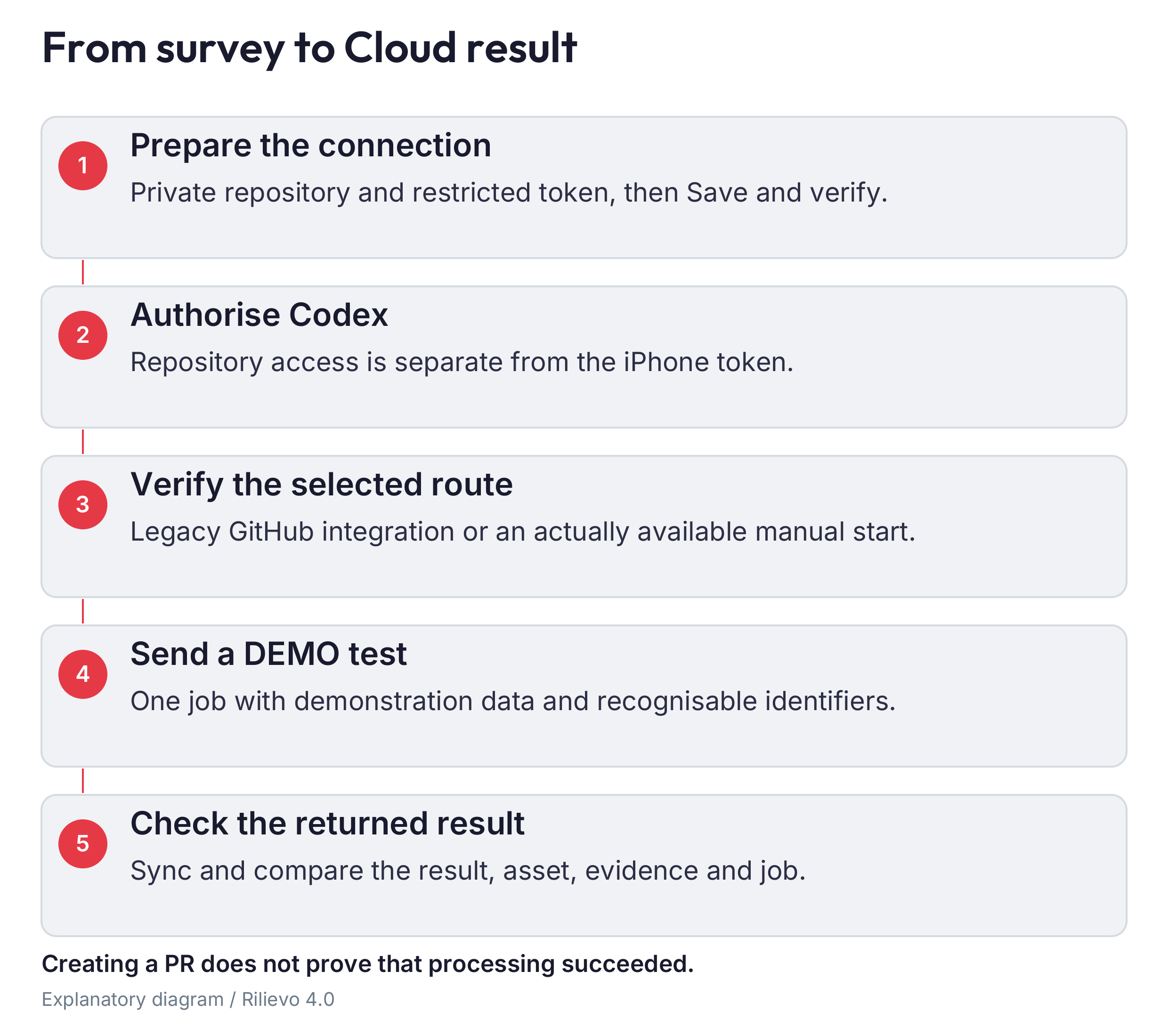
The GitHub connection saved on the iPhone and Codex’s permission to read the repository are two different accesses. Verifying the token in the app does not mean that Codex can process the repository. Sign into ChatGPT/Codex with the intended account and check that its plan, workspace, limits and policies allow the required feature. Capacity or credits may be separate from the app subscription.
Authorise the official GitHub integration for only the necessary repository. Check the owner and any administrator-approval request. For jobs started by an @codex comment on a PR, the GitHub integration uses legacy environments. Creating or publishing an environment in the new cloud experience does not establish that the PR route is configured. Do not migrate or replace a working environment merely because another screen calls a different experience “new”.
Within the relevant route, create or inspect the environment associated with the repository. If manual research is needed, allow network access according to policy and the necessary domains. Do not disable security controls to make an error disappear. Without network access a search can be incomplete; already collected material can still form the authorised input. There is no need to invent setup commands or put API keys in GitHub fields.
In the app, “Job trigger” → “Comment @codex on the PR (integration required)” publishes the request to the configured mention. Leave @codex unless your account has a different verified configuration. “Labelled PR only (started externally)” prepares work for an external start, either manual or through an existing tested automation; “Manually from Codex Cloud in a browser” requires you to start it. Neither creates a self-running service on its own.
Do not enable automatic code review believing it analyses machinery requirements. The objective is to process the job and return the format expected by Rilievo 4.0. Model and reasoning requests in a cloud prompt do not guarantee their actual assignment: the account and environment determine execution. After any environment, permission or trigger change, repeat the full test in the next chapter before sending client data. An environment marked as published is one setup milestone, not proof of a successful return to the app.
11 The DEMO test that proves the complete connection
Create an unmistakable demonstration appraisal, for example “DEMO — no client data”. Use an object or demonstration machine you may lawfully photograph. Exclude people, badges, confidential screens and client documents. Add a general view and a specific note, such as “check the legible nameplate text in this image”. A small test makes failures easier to identify without multiplying requests or charges.
With Codex Cloud, add an arrow, tap “Done”, open the panel and use “Sync now”. In the “Codex” tab, open the job and the PR in the correct repository. Check the app’s request and the @codex comment. A bot reaction means receipt; an open PR means dispatch. Both come before a result.
The response must comply with the protocol published in _ai/response.schema.json, with matching schema, job identity and type; assessment sections must be inside result. Comments are accepted only from the verified Codex bot; manually copying a human comment is not equivalent to the bot’s response. For the manual route, use the specified response.json on the job branch and preserve its protocol. A good explanation in free prose may still be unimportable. Do not change the format arbitrarily or copy another job’s response to obtain a green state.
Return to the app and synchronise. Open the result and compare asset code, photograph, arrow and extracted fact with the original material. Then export the package, open it in Files and check the photograph and response. The route is ready only when dispatch, execution, return, import and content verification have all succeeded.
Apply the same principle to APIs and Local AI, without the PR: a DEMO request, actual output, correct association and checked export. On failure, keep the exact message, time, version and PR number or job identifier, without secrets. You may keep collecting evidence or use another authorised route, but do not treat the failed route as ready for client work. Repeatedly tapping retry can create duplicate requests and consume credits without solving the cause. Record one controlled change at a time so that a later success has an understandable explanation.
12 Open the assignment and register its assets
Rilievo 4.0 presents the inspection as an appraisal and the machine as an asset. Create the appraisal, check client, site and inspector, then start work. Location may suggest a name but cannot reliably identify the company: verify the legal entity and factory, especially on sites occupied by several businesses. Do not change the phone clock to alter the assignment date.
Open “Appraisal data” in the panel. Complete the client’s legal name, tax or VAT number, registered office and contact from the documents. Confirm the first inspection date, initially proposed from the creation date, and add subsequent visits separately. If the company’s tax period differs from the calendar year, enter its beginning and end. Otherwise the app assumes a calendar year and states that assumption in the document.
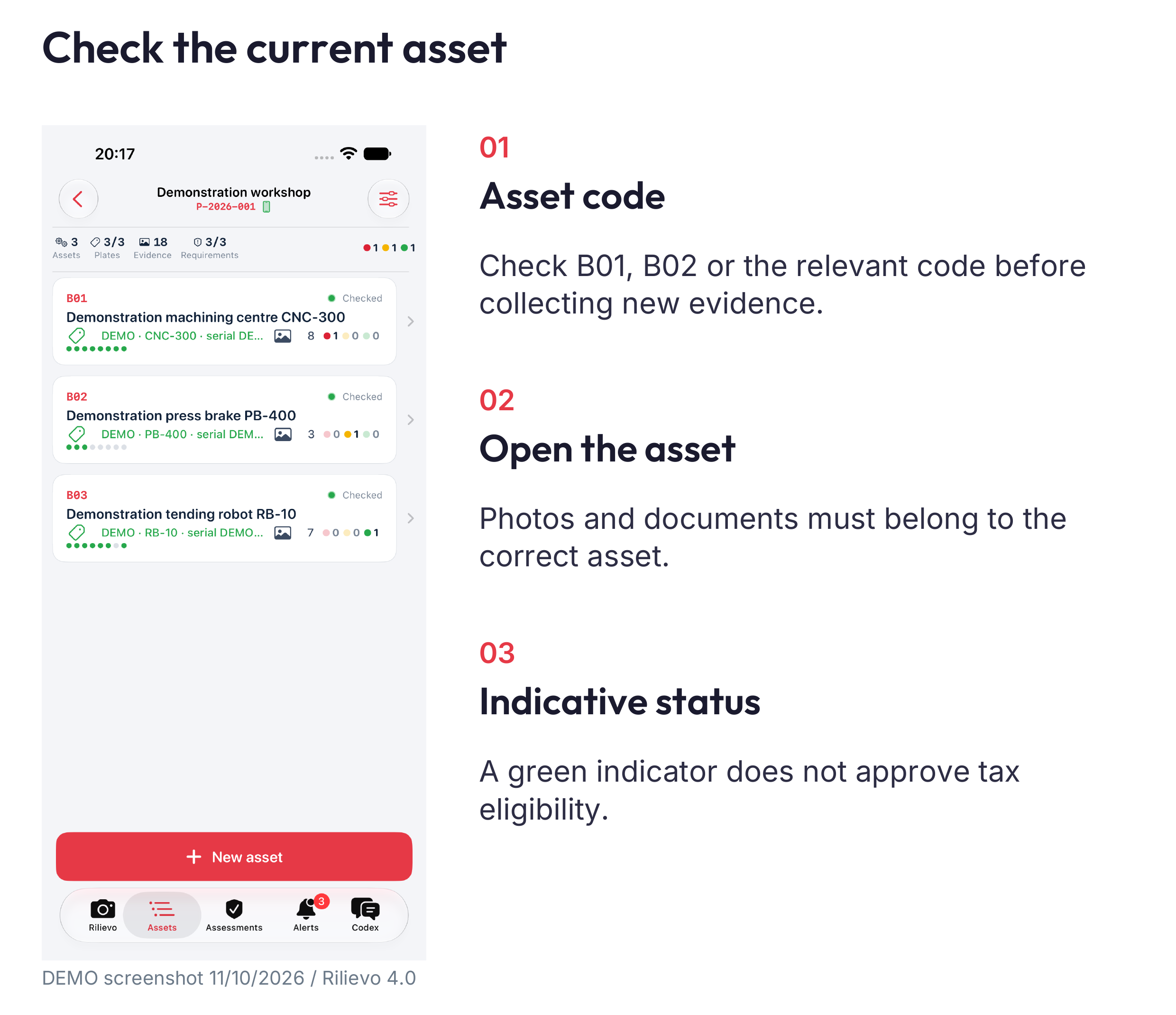
Before each photograph, check the asset code in the camera strip. Subsequent material stays with the current asset until you change it. Capture an identifying general view, followed by the nameplate and details. When moving physically to another machine, change the asset in the app too. Do not postpone association until the end of the day when similar machines are difficult to distinguish.
Record components or sub-machines according to the inventory needed for the assignment. Grouping organises evidence; it does not automatically establish legal boundaries, functional independence or fiscal classification. Avoid duplicating a document without stating whether it concerns a component, the main asset or a shared system.
A simple naming convention improves checking: use a recognisable name, verified serial number and brief function, while retaining the app’s assigned codes. “Machining centre — department A — serial read on plate” is safer than “New machine”. If a number is unreadable, leave it missing and arrange verification. Before the first analysis, open the inventory and confirm that asset count, component relationships and site match the actual visit. A few minutes spent here prevent results being attached to the wrong unit later.
13 Collect evidence that is readable and attributable
The camera organises acquisition into groups. Follow the groups required by the asset’s profile: general view, identification, control, interconnection, integration and the relevant additional characteristics. Coverage dots show the presence of classified material, not technical sufficiency. Ten photographs of the same screen cannot replace evidence of data exchange or a document specific to the unit.
For every capture, ask which fact it establishes, for which asset, in what circumstances and on what date. Photograph context before detail. Avoid reflections on plates and cropped text. For a CE plate, compare the extracted result with the image: manufacturer, model, serial and year can be misread. A photograph of the marking does not by itself perform the machinery-safety assessment.
When annotating, draw the arrow from tail to tip, zoom with two fingers and check the precise target. Colours express your initial indication and can be revised. Write observable notes: “network page shows address …” is more useful than “interconnected OK”. Do not include visible passwords. Tap “Done” and confirm that the note belongs to the correct photograph.
For documents, choose “Document”, use the multipage scanner or import from Files. Check every page, its order, edges and readability. In “Document details”, record type, issuer, number, date and relationship to the individual unit. Annotate relevant content with the page and actual finding, especially for Local AI. A manual for a similar model does not become this machine’s manual simply because an online search found it.
For interconnection, collect consistent information from both ends of the exchange: asset identity, company system, instruction or data transferred, date and context. A ping or IP screen records network aspects, not every required function. For a shared folder, show its path, files attributable to the asset and an open report, rather than an empty directory. Do not run tests on the company network without its authorised contact. Preserve the evidence even where the result is inconclusive; an inconclusive test is not a reason to rewrite what happened.
Use this short map to plan collection for a 5+2 profile. The relevant catalogue wording takes precedence; examples are not automatic proof.
| Code | Area to verify | Example of useful material |
|---|---|---|
| O1 | Numerical or PLC control | Identified controller and observed cycle |
| O2 | Interconnection | Asset identity and company-system data exchange |
| O3 | Automated integration | Actual orders, batches and logistics flows |
| O4 | Human-machine interface | HMI pages and observed operation |
| O5 | Safety, health and hygiene parameters | Relevant documents and technical checks |
| RU-a | Remote maintenance, diagnostics or control | Actually checked session or configuration |
| RU-b | Continuous monitoring and adaptation | Sensors, variables and process behaviour |
| RU-c | Cyber-physical integration | Virtual model linked to the real process |
14 Dates classification and regime complete the relevant facts
The applicable profile is not always the former universal 5+2 formula. The app distinguishes catalogue family, item, fiscal measure and applicable period. A match to the catalogue and a date within a window are preliminary checks, not a determination of entitlement. The professional must assess the actual case and coordinate with whoever handles its fiscal aspects.
In “Asset data”, choose the purchase method before entering supply dates: direct purchase, lease, contract work or self-built. Use the relevant documents, rather than treating the invoice date as a universal substitute for delivery or investment date. For advance payments, record actual payment. If the computed period does not represent the case, use “Expert’s choice” with documented reasoning. Do not alter a date to move an asset into a preferred period.
Check “Key asset data”: transfer date, entry into service, declared interconnection, interconnection check and eligible total. The amount remains company-declared and subject to verification. The analytical cost dossier is not implemented. This version does not provide a complete automatic cost-reconciliation procedure, and a populated amount field must not be presented as one.
Choose the relevant catalogue item, compare its text and confirm deliberately. An unconfirmed automatic correspondence is not a final professional selection. The 5+2 profile contains O1–O5 and at least two of RU-a, RU-b and RU-c. Other items require O2 plus the item’s functional characteristics. The app adapts evidence groups and checks to the profile. Overriding it requires reasons and does not remove requirements that actually apply.
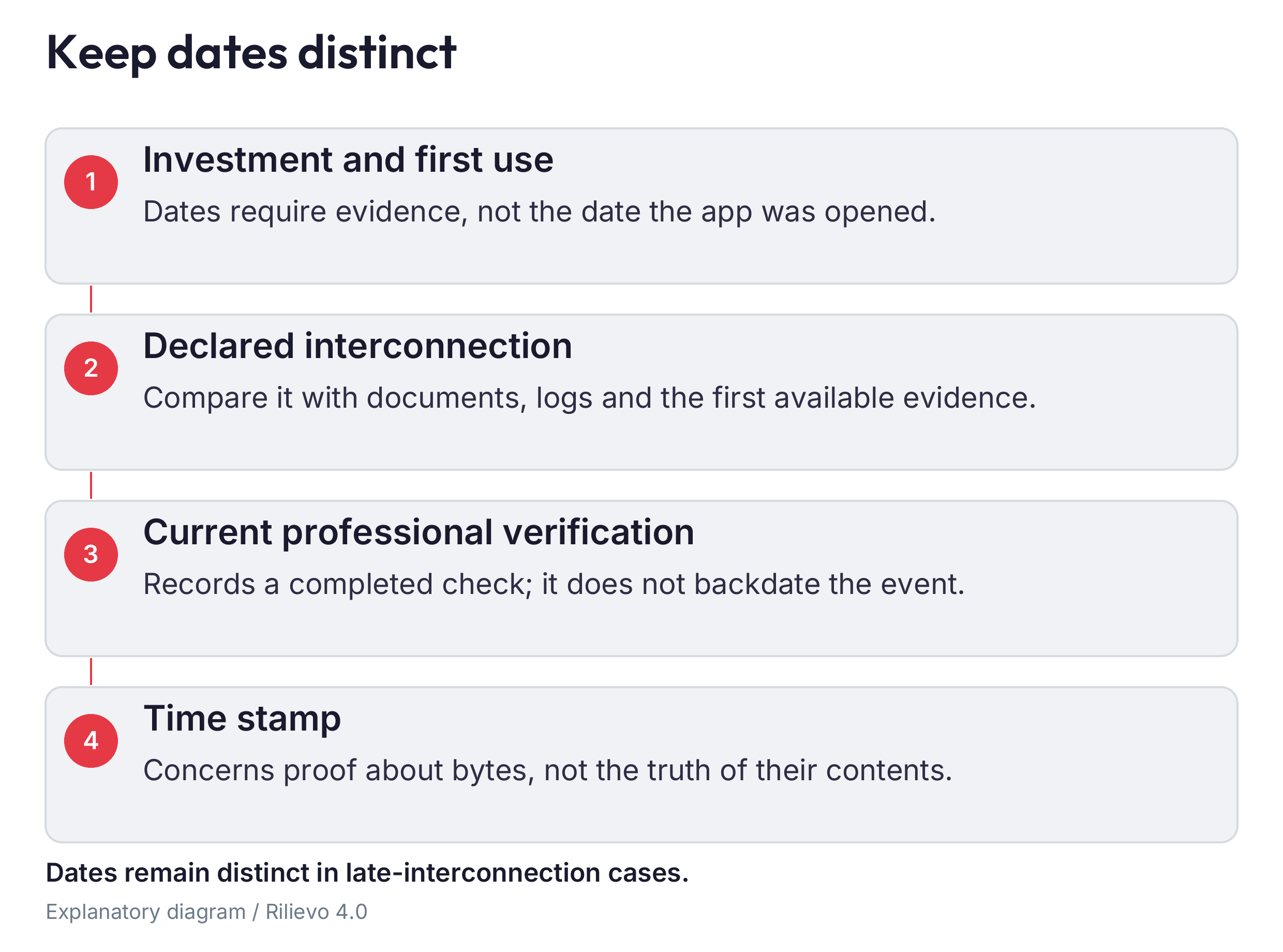
Open the timeline and dates view and use its link to the field that needs correction. Distinguish document date, date displayed on a screen, capture, import and professional verification. For historical material, record origin and date precision. AI proposals remain to be confirmed, corrected or rejected. Defensible drafting requires an explicit interconnection-check date; a visit date does not automatically supply that verification. Check the printed timeline before treating the chronological review as complete.
15 Complete and defensible drafting choose responsibly
In appraisal data, choose the appropriate drafting mode. Complete drafting starts from collected evidence and exposes deficiencies and unresolved points. Defensible drafting starts from the professional’s declaration about an asset actually checked and the recorded basis supporting it. It is not a tool for turning an unknown condition into a positive fact.
If using “Defensible”, enter the date checks were completed and declare independence only where true. For each asset, open the expert’s declaration and state that you verified it and declare it compliant with the requirements only after making that check. Review profile, declared requirements, field-check date and interconnection verification. For the reduced profile, confirm functional characteristics only when you have verified them.
Record direct checks in the expert-data section, under direct expert checks. Choose requirement and inspection day, then describe what you observed. A useful sentence contains fact, object and circumstances: “program P-17 received from the company system was loaded on the HMI”. An AI inference or supplier statement is not your direct observation. Record those sources in their own fields rather than giving them a stronger origin.
For third-party statements, record person, role, organisation, form, date and actual content. These details can appear in the document without automatic anonymisation. Remote assistance or remote desktop must be described and verified when cited. Do not attribute NIS 2 measures to the client without the relevant statement. Record why an image was not acquired in the internal field, not by fabricating a substitute photograph or an observation.
Tap “Check now” and read the issues to address before signing. The defensibility score is an internal aid, not certification or approval. Rewriting in affirmative form changes expression without authorising new facts. When reviewing text, check each block; consider whether regeneration would discard your revisions. Certain errors prevent even a draft. Correct the underlying information instead of bypassing the check. Exporting the internal note creates a separate professional working document, not part of the appraisal. Its handling must reflect that status.
16 Historical regimes and late interconnection
A visit today may concern an investment made years earlier. The year of the inspection or report must not replace the investment period. Check order, acceptance, payments, delivery or other relevant basis, followed by entry into service, declared interconnection and present verification. Keep company statements, first dated proof and what the expert can attest separate.
Where relevant, complete the cause of delay, characteristics at first use, later changes and evidence of the date. For each initial characteristic, describe the available basis. A condition observed today does not automatically establish the same configuration at entry into service. For interconnection and integration, distinguish readiness at delivery from exchange actually beginning later.
For dated proof, identify its class, system, asset and origin: system log, third-party document, company document or screenshot. A company statement alone does not prove the exact historical start of exchange. The expert’s direct check is a distinct basis recorded in the professional-check fields. Do not confuse the manufacturer’s remote assistance with interconnection to the company’s system.
Before confirming an AI proposal, open its source and check identity, readable date, precision, clock and relationship to the asset. If a screen clock was wrong, record that fact instead of silently correcting the evidence. The earliest proof available may be later than the date declared. Preserve both and their origins. Missing initial proof does not justify moving a date backwards.
In the report, check the selected document group and the section actually relevant to the case. Late collection of documentation must not automatically be described as late establishment of interconnection. An elapsed historical deadline remains a reference to that period, not an assumed acquisition date. A timestamp obtained today establishes only its own verifiable temporal limit; it does not backdate photographs, configurations or data exchange. In the local/defensible route, enter these data manually. This guide does not promise automatic equivalence between the three AI routes for these specialised proposals. A more confident narrative is not a replacement for a supported chronology.
17 Read results alerts and consumption critically
Open the asset verification and compare its summary with individual requirements, cited evidence and expert data. The app may recalculate an AI’s overall result from the individual checks; read the explanation. If the proposed classification differs from yours, resolve the conflict before drafting. Verified expert information must not be replaced by a more confident but unsupported AI assertion.
Waiting, running, error and completed describe the process. “Completed” means that a response has been acquired, not that it is technically correct. Open the cited evidence and check the fact. A response can name another asset, infer a controller from appearance alone or cite a nonexistent document. Correct such errors before using the text and verify that the corrected result has been used in the new report.
In “Alerts”, read each request against the right asset. Use the proposed acquisition when useful and close an item only after recording the reason. Deleting an alert removes the item; it does not fix the machine. Reviewing alerts asks for another analysis of open items without replacing your examination. No alerts does not mean no problem. A list can also be empty because a relevant analysis has not run.
In “Settings” → “AI usage”, inspect provider-reported tokens and estimated costs by period, model, activity and appraisal. Built-in pricing, a manually entered price and the applied exchange rate are aids. Compare the exported CSV with the provider’s statement. Repeated requests, corrections, research and different reasoning levels can have different costs. The counter is neither a guaranteed tariff nor a contractual spending cap.
Before a long analysis, decide what is missing and which question it should answer. Complete data and associations first, then request verification. If notes keep changing while a job runs, another assessment may be necessary. In Essential mode, group annotations and launch checks deliberately. Do not regenerate accurate text merely to obtain a more favourable label. Save the professional correction and its evidential reason so that a later reviewer can understand it.
18 PDF and Word generate a consistent revision
Open “PDF and Word reports” → “New report”. For Rilievo 4.0, choose “Industry 4.0 technical appraisal”, “Asset sheet — 4.0 requirements”, “List of assets” or “Photographic evidence” according to purpose. Check language, revision, report regime, asset selection and contents. Technical appraisals and asset sheets cover one document group at a time. Prepare separate documents for different groups; lists and photographic evidence may cover mixed groups.
Choose a report date consistent with visits and evidence. Read the check before generation. In complete drafting a draft may show inconsistencies to resolve. “Issue for signature” requires its prescribed checks, but does not approve or sign the document. In defensible mode, some checks prevent even a draft. AI text referring to excluded assets or a different regime may be omitted or stop issue. Review the selection instead of reinserting that text without examination.
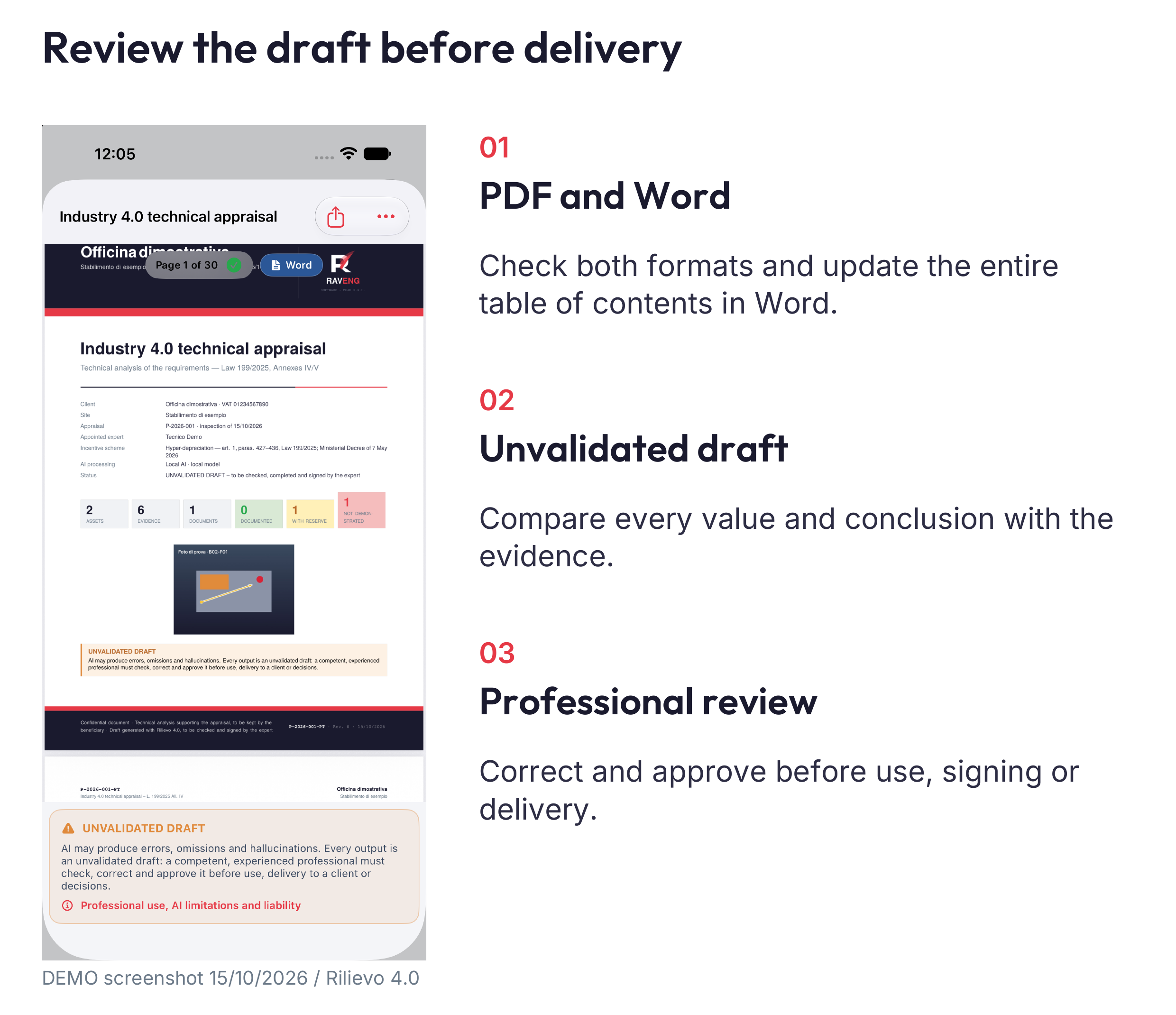
Keep “Also in Word (.docx)” enabled if you need both formats, then choose “Generate PDF and Word”. Typesetting takes place on the device. In the preview, inspect cover, representative asset sheets, tables, conclusions, figures, annexes, warnings and signature area. Share the PDF through its command; the Word badge and menu allow you to share or save the DOCX in Files.
Word uses the data and images saved at generation, not later changes to the appraisal. Generate a new revision for updated contents. Recreating the Word document rebuilds the same report. If you edited it, decide deliberately whether to keep a copy. Do not replace a revision already delivered without preserving its history. Older reports may lack the data needed to build Word; preserve the original and generate a separately identified revision where appropriate.
Before delivery, open Word in Microsoft Word, select all and update fields, then update the table of contents using “Update entire table”. Check actual pages and cross-references after editing and PDF conversion too. Previews and cached numbers do not establish that the table was updated. The professional must verify sources, calculations, translations, references, conclusions and signatures. Draft labels remain meaningful until the professional has completed and documented the necessary review.
19 Integrity fingerprints and optional timestamps
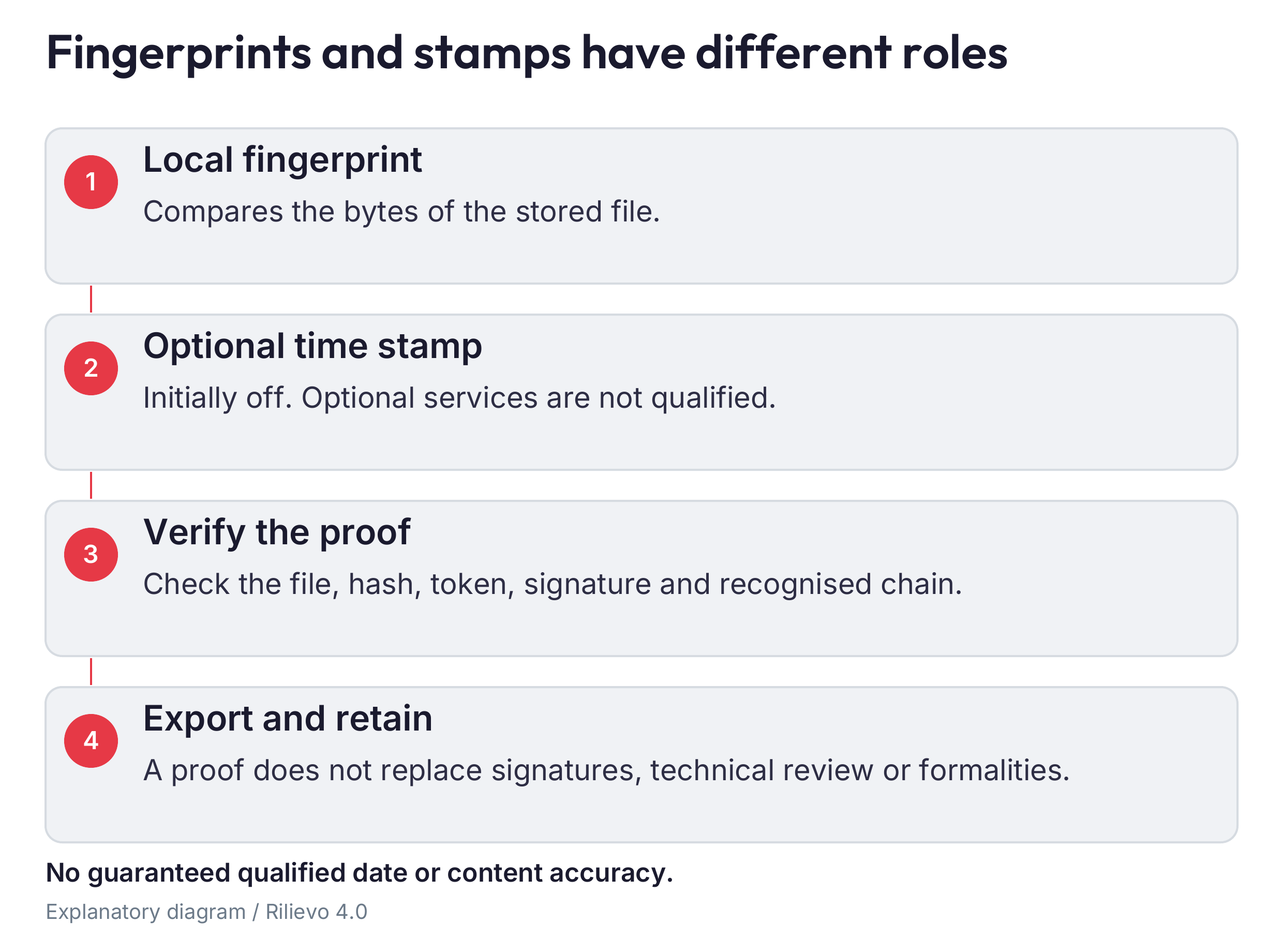
New evidence receives a locally recorded SHA-256 fingerprint. Photographs, documents and reports can be compared with that digest to detect changes. A fingerprint alone does not establish author, truth or date. For historical evidence, use “Compute fingerprints for existing evidence” in the “Time stamps” register. The app identifies that calculation as later than acquisition and does not create retrospective proof.
“Apply time stamp”, under Settings in the “Documents and legal value” group, is off by default. If enabling it, read the disclosure and options for a second stamp, OpenTimestamps, Word, per-file mode and Wi-Fi. Timestamp services receive fingerprints or derived roots rather than file content, but still see technical connection information. Exported proofs can include metadata containing codes, notes, times and location; inspect them before sharing.
Available timestamps are non-qualified. The important expression is “existed no later than”, which differs from capture time. Without a network, requests wait. The returned stamp carries the service’s time when it processes the request. It is not a digital signature, certified delivery, professional approval or certification of truth. An unknown chain or unverifiable proof does not supply an attested date inside the app.
In the timestamp register, review waiting items and errors and use verification commands. Read the detail if a file no longer matches. Do not replace tokens or trust roots manually merely to obtain a positive result. OpenTimestamps may be awaiting anchoring; the block reported by the calendar needs the specified check. Independent verification remains important, especially for material retained over years.
Use “Export dossier” and keep _integrita, _marche, VERIFICA.txt, register, manifests, tokens and chains with the covered files. Use the instructions generated for that package, not commands copied from another archive. If stamps arrive after export, export again to include them. Keep earlier Word versions with their own proofs when their bytes change. An existing PDF retains the state of its integrity annex at generation, even when its separate attestation later updates. Neither a successful chain check nor a renewal validates the technical statements in the underlying report.
20 Your practice’s logo and print test
Open “Settings”, scroll to the “Reports” group and tap “Logo and letterhead”. Import a logo from Files that you are entitled to use, or capture it with the offered tools. Best results start with a sufficiently large transparent PNG or a one-page vector PDF containing only the mark. A small social-media image cannot be expected to print sharply. For SVG, EPS, AI or PSD, ask the designer for a supported format.
Crop unnecessary margins without removing parts of the mark. Check background removal and variants for the dark cover band and footer. If brand rules prohibit recolouring, choose an appropriate original or white-plaque treatment. Complete practice name and optional lines and read the quality indication. The smallest lettering needs to remain legible at the actual printed size.
Run “Print proof with pdfTeX” in the desired language. Open the resulting PDF and enlarge cover and footer. The page preview uses system fonts; the print test shows the reporting engine’s output. Repeat it after changing logo or wording. A successful test checks layout, not permission to use the mark or the assignment’s technical content.
“Use the firm logo” establishes the default for new reports. For one document, the report sheet lets you choose the practice or RAVENG under “Logo in the reports”. The software footer attribution is not a professional signature. The prescribed warnings and software-provider identity remain: graphic customisation does not transfer responsibility or establish approval. Check both languages because different line lengths can affect the presentation.
Each report preserves the logo version used at generation. Changing the setting must not alter historical documents or Word rebuilt from that report. Do not delete logo files from the report folder. To use the same branding in the other app, export the .rilievologo package, import it there and repeat the print test. Retain that package separately: the logo is not included in the ordinary appraisal ZIP and the two apps have separate settings. A file saved outside the app also makes recovery easier when changing devices.
21 Backups recovery and the closing routine
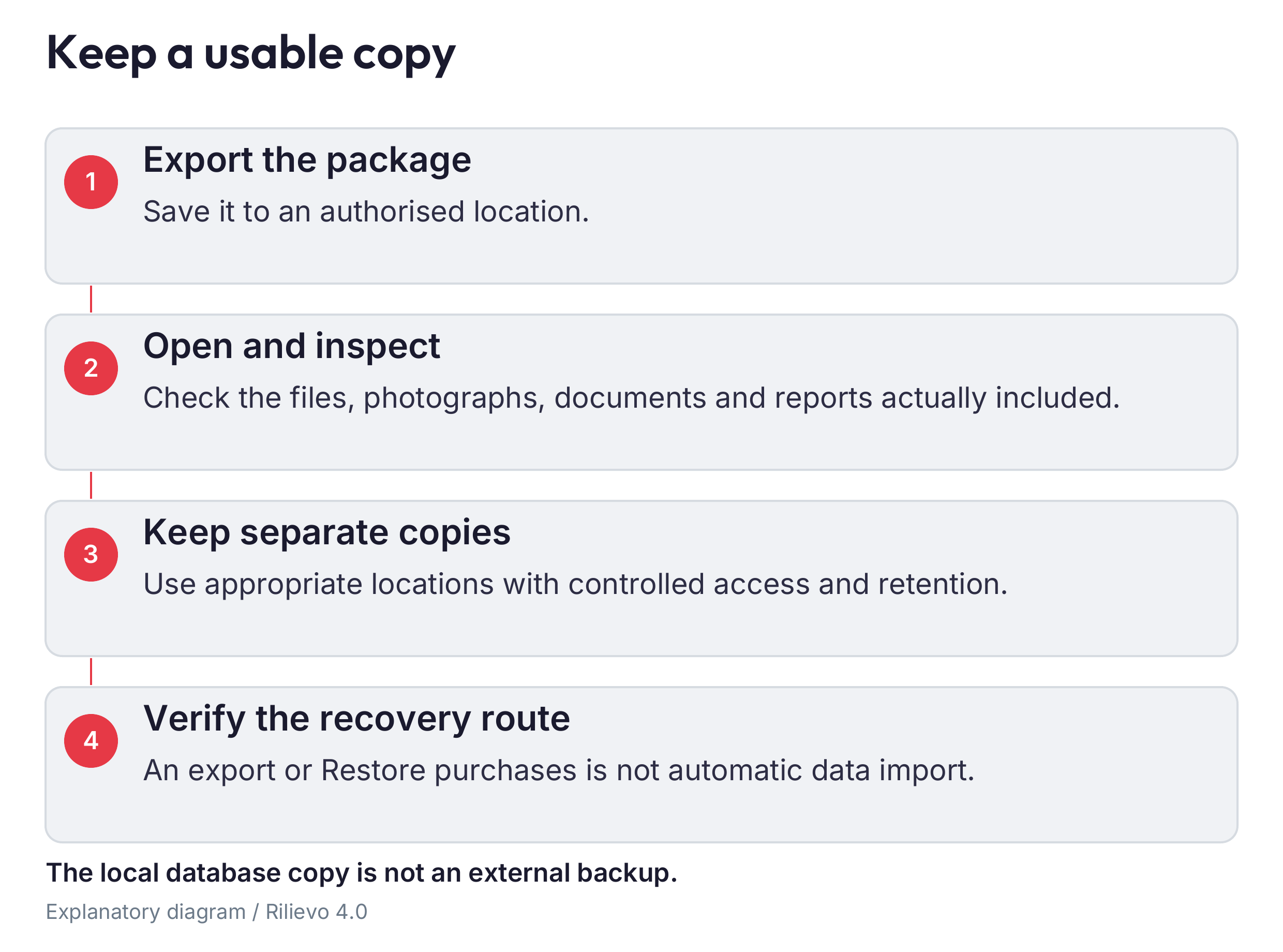
“Export dossier” creates a working copy that can be checked outside Rilievo 4.0; the separate Rilievo app calls it “Export package”. Save it in an authorised location, open the ZIP and inspect data, photographs, documents, available responses and proofs. Keep at least two copies in appropriate locations with names distinguishing assignment code and revision. A GitHub repository is not a substitute for a verified complete backup: cloud files may be resized copies, and repository history has its own access rules.
In the package, “original” means the file retained by the app. A capture may be JPEG resized according to settings rather than a native sensor file. Preserve RAW, native-resolution files or other formats separately where required. Photographs copied to Photos do not necessarily include documents, annotations, asset data and AI responses. Check the deliverable rather than assuming a folder contains every category of information.
Distinguish three operations: automatic database recovery in the same container after an update; external document backup; and restoration of purchase entitlements. None replaces the others. This version does not promise general reimport of a ZIP package into the live archive. For a new iPhone, check Apple’s backup tools and inspect the restored contents before retiring the old phone. Keep exports and branding separately in any event. Credentials may need renewed authorisation.
Before a visit: check version and storage, backup, successful AI-route test, permissions and client authorisations. During: check selected asset, readable captures, precise notes, dates and origins and actual requests. Afterwards: resolve associations, review data, verify requirements, read alerts, check documents, open and inspect the exported package, then retain copies.
Before deleting an asset, report or assignment, read what the confirmation removes and verify the backup. Deletion in the app does not erase GitHub commits, PRs, cloud conversations, exports or backups. An archive error calls for preserving device and backups and obtaining assistance, not reinstalling. Prepare app version, iOS, steps and exact error for support, with a non-confidential example. Do not automatically send a client’s entire dossier or any credentials.
22 Troubleshooting questions glossary and final review
Work from symptom to cause and retain the error before changing settings. If one attempt fails, avoid uncontrolled repetition.
| Symptom | Check | Useful action |
|---|---|---|
| Archive cannot open | Recovery notice and storage | Do not uninstall; retain backups and contact support |
| Historical survey has no regime | Origin and missing data | Enter the documented regime manually |
| Assignment cannot be found | Correct app and container | Check Rilievo versus Rilievo 4.0 |
| Photograph is unreadable | Glare, focus and resolution | Repeat capture without losing required evidence |
| File belongs to wrong asset | Current asset and association | Correct before another verification |
| Nameplate reading is wrong | Compare with photograph | Correct the data instead of trusting OCR |
| Date is impossible | Timeline and source | Open the field and relevant document |
| AI proposal is doubtful | Source and precision | Correct or reject instead of accepting for convenience |
| Local model will not run | Compatibility, RAM, download | Use a ready compatible model |
| Large download | Storage and iOS network settings | Prefer Wi-Fi and check cellular usage |
| API returns 401 | Key and provider | Replace with a valid protected credential |
| API cannot read images | Model capability | Choose an available vision model |
| GitHub returns 403 | Permissions, SSO and policy | Read the message and involve the administrator |
| Repository returns 404 | Owner, name and private access | Check fields and authorised repository |
| PR has no processing | Connector and legacy environment | Verify the correct GitHub/Codex route |
| Response is not imported | JSON, identity and origin | Fix the job’s protocol, then synchronise |
| Unexpected cost | Repeats, model and service | Compare log and provider statement |
| Generation is blocked | Specific reported issue | Correct data or text without bypassing checks |
| Word references are wrong | Fields and table of contents | Update fields and the entire table in Word |
| Timestamp waits or fails | Network, chain and file | Read status, retain proofs and export again |
Common questions. Can I deliver when a job says Completed? No: that is process status, not professional approval. Is cloud ready after Save and verify? No: complete the full test. Does the old 5+2 pattern suit every asset? No: verify the applicable profile. Does recreating Word update its content? No: generate a new revision. Does a timestamp prove capture time? No: it provides its own verifiable temporal limit. Does changing the logo alter old reports? No: each retains its generation-time branding. Does restoring purchases recover data? No: it concerns available entitlements.
Working glossary. Evidence: a file or observation supporting a fact. Origin: who supplied it and how. Profile: requirements applicable to the catalogue item. Regime: measure and period to verify. Job: an AI request with its own identity. Token: either a credential or an AI consumption unit, depending on context. PR: GitHub work page. Fingerprint: file digest, not an attestation of truth. Manifest: list of fingerprints and links. Draft: output not yet professionally approved.
Before delivery. Correct client and assets; verified facts and dates; reasoned classification and scope; requirements supported by real evidence or checks; sources opened and applicable; AI errors corrected; sums independently checked; consistent PDF and Word; updated contents and references; retained limits and warnings; documented professional approval; verified preserved package. If a necessary check is incomplete, keep the draft and suspend delivery as a final document.
Official references for settings that may change. Codex Cloud, legacy environments, Codex and GitHub, GitHub tokens, fine-grained GitHub permissions, Apple subscriptions, updating a Word table of contents. Also open the app’s privacy notice, terms, support page and model licences. For API prices, limits and data handling, use the selected provider’s official portal and recheck before changing a setup used with real data.
For the OpenAI options discussed, see Ultrafast, pricing and data controls. The guide’s edition and date do not make those conditions permanent.